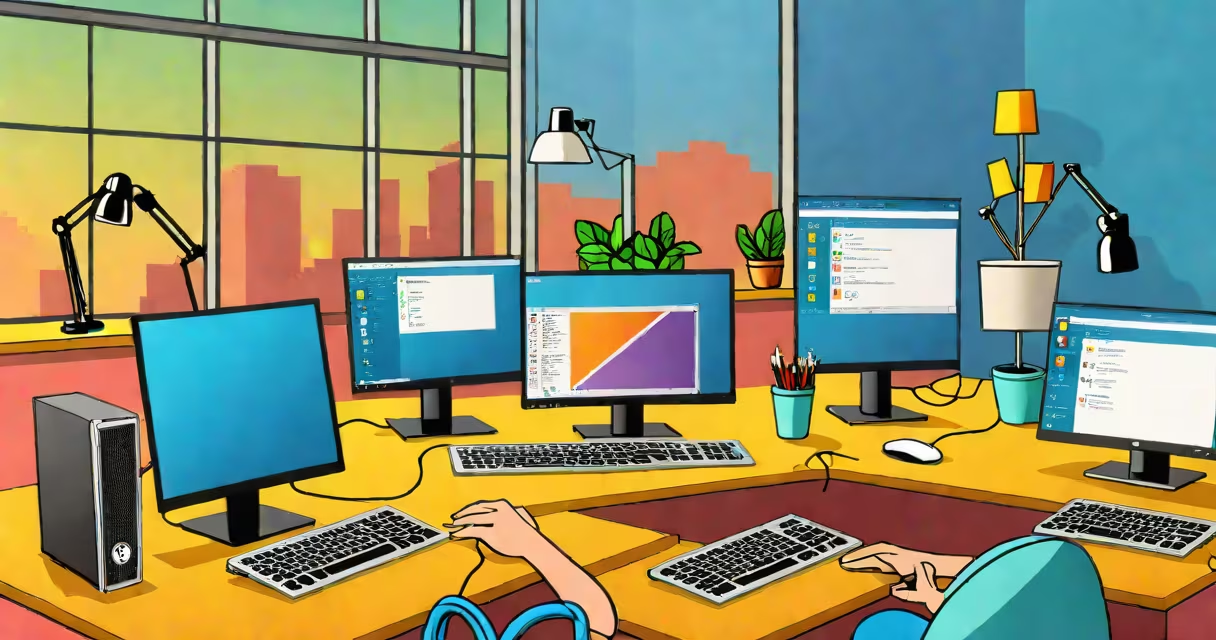
Free remote desktop software for Windows enables users to access and control another Windows computer over a network or internet connection, using their own keyboard, mouse, and display. This allows file transfers, application execution, system troubleshooting, and remote work without physical presence.
These tools function by establishing a secure connection between two devices-one acting as the host (the machine being controlled) and the other as the client (the device doing the controlling). The host runs a service that listens for incoming connections, while the client sends input commands and displays the remote screen in real time.
Most free remote desktop software for Windows uses encrypted protocols such as RDP (Remote Desktop Protocol) or proprietary encryption methods to protect data in transit. They typically require both machines to be on the same network or connected via the internet through a public IP address or changing DNS setup.
When you launch a free remote desktop software for Windows client, you enter the IP address or hostname of the target machine. The client then initiates a handshake with the host's listening service. After authentication-usually via password or certificate-the client receives a stream of video frames from the host's display and sends back mouse movements, keystrokes, and touch inputs.
Behind the scenes, the software compresses screen updates and transmits them efficiently. For example, if only a cursor moves across a static desktop, only the changed pixels are sent. This reduces bandwidth usage and improves responsiveness, especially over slower connections.
Some tools support features like clipboard sharing, audio redirection, printer mapping, and multi-monitor support. These improve usability during remote sessions, allowing smooth integration with local workflows.
There are several categories of free remote desktop software for Windows based on architecture and use case:
| Type | Best For | Key Features | Limitations |
|---|---|---|---|
| RDP-based (built-in) | Internal networks, IT admins | Native Windows support, low latency, high security | Requires port forwarding; not ideal for home users |
| Third-party client-server | Remote work, family support | Easy setup, cross-platform, cloud login | May limit session duration or bandwidth |
| Open-source tools | Privacy-focused users, developers | Transparent code, no telemetry, customizable | Steeper learning curve; less polished UI |
For instance, Microsoft's Remote Desktop Connection (RDC) is included with most Windows editions but requires the host to have Remote Desktop Services enabled. It supports up to 1080p resolution and hardware-accelerated graphics when properly configured.
Third-party tools like AnyDesk and TeamViewer offer plug-and-play installation. You don't need to configure firewalls or ports-just install the app on both ends and connect using a unique ID. However, these services often impose time limits on free accounts or restrict advanced features.
Open-source options such as Apache Guacamole provide web-based access without installing clients. It runs on a server and streams the desktop through a browser. While useful, it demands technical setup and ongoing maintenance.
Many assume that "free" means "unlimited." That's incorrect. Free versions often cap session duration (e.g., 15 minutes per session), limit bandwidth, or disable file transfer. Some even log usage data or show ads.
A key distinction: not all remote desktop software is designed for continuous access. Tools like Chrome Remote Desktop are optimized for occasional use-ideal for helping a relative fix a problem-but unsuitable for running long-term tasks like video rendering or hosting servers.
Another misunderstanding is that remote desktop software automatically secures your connection. While most use TLS or AES encryption, weak passwords or unpatched systems create vulnerabilities. A 2022 report from the Cybersecurity and Infrastructure Security Agency (CISA) warned that exposed RDP ports were among the top attack vectors in ransomware incidents.
I once set up a free remote desktop session for a friend who needed help with a corrupted registry entry. I used a combination of Windows' built-in Remote Desktop and a temporary password. The session lasted under five minutes. The issue was resolved quickly, but I noticed the connection dropped twice due to unstable Wi-Fi. This highlighted how network quality impacts reliability-even with free tools.
Consider your needs before selecting free remote desktop software for Windows. If you're managing office computers, prioritize tools with centralized administration, logging, and role-based access. For personal use, simplicity and cross-device compatibility matter more.
Always verify the software's reputation. Check reviews on Trustpilot and r/Windows10. Avoid tools that request excessive permissions or bundle unwanted software during installation.
For example, a user trying to remotely assist a parent with email setup should avoid TeamViewer's free plan if they plan to use it daily. Instead, Chrome Remote Desktop offers unlimited access within Google account boundaries and integrates smoothly with existing devices.
The best free remote desktop software for Windows balances functionality, ease of use, and trustworthiness. Evaluate based on actual performance-not marketing claims.
Free remote desktop software for Windows is not a one-size-fits-all solution. Match the tool to your task, network environment, and privacy standards. Test it in a safe setting before relying on it for critical operations.
Understanding how it works-and what it doesn't do-prevents frustration and security risks. Use it wisely.