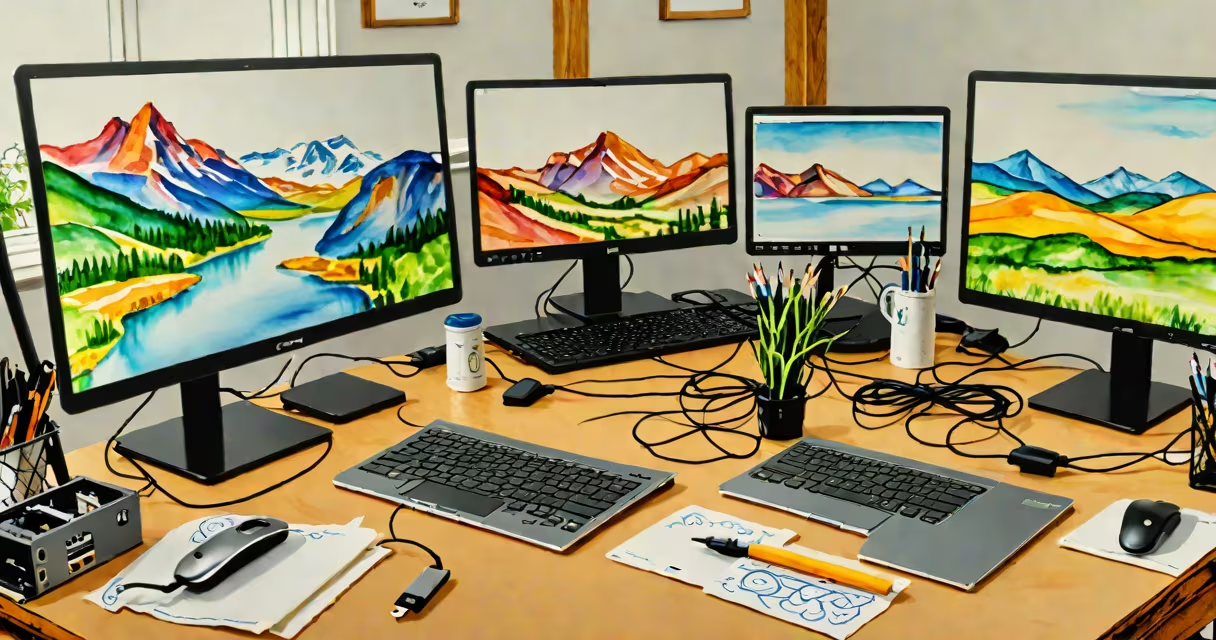
Connecting two monitors to a laptop expands your workspace by extending or duplicating your screen across multiple displays. This requires compatible ports, correct cable types, and proper OS settings. Most modern laptops support dual external monitors through HDMI, DisplayPort, or USB-C/Thunderbolt outputs.
Modern laptops typically have one or more video output ports. A single HDMI or USB-C port may support one external display. To run two monitors, the laptop must either have multiple video outputs or support daisy-chaining via DisplayPort or USB-C with DisplayPort Alt Mode. Some high-end models, such as the Dell XPS 15 or MacBook Pro 14-inch, support dual external displays natively via Thunderbolt 4 or USB-C.
For example, a 2021 MacBook Pro with two Thunderbolt 4 ports can drive two 4K monitors at 60Hz simultaneously. A Windows laptop with a single HDMI 2.0 port and a USB-C port supporting DisplayPort Alt Mode can connect one monitor via HDMI and another via USB-C using a USB-C to HDMI adapter. The key is matching the laptop's output capabilities with the monitor's input requirements.
The process begins with the laptop's GPU sending video signals through physical ports. These signals travel via cables to the monitors' inputs. The operating system then detects the new displays and allows users to assign them as extended, mirrored, or secondary screens.
Common port types include HDMI, DisplayPort, and USB-C with DisplayPort Alt Mode. HDMI supports up to 4K at 60Hz on version 2.0 and later. DisplayPort 1.4 handles 4K at 120Hz and 8K at 30Hz. USB-C with DisplayPort Alt Mode enables video transmission over standard USB-C cables, provided the laptop and monitor both support it.
A critical but often overlooked detail: not all USB-C ports support video output. Only those labeled with the DisplayPort icon or specified as "video capable" in the manual can send display signals. For example, the Lenovo ThinkPad X1 Carbon Gen 9 has two USB-C ports, but only one supports video output. Always check the manufacturer's specifications before purchasing adapters.
Use the table below to match your laptop's ports with the correct cables and adapters for dual-monitor setups.
| Laptop Output | Monitor Input | Cable/Adapter Needed | Max Resolution Support |
|---|---|---|---|
| HDMI 2.0 | HDMI 2.0 | HDMI cable (1.5m) | 4K @ 60Hz |
| USB-C (DisplayPort Alt Mode) | DisplayPort | USB-C to DisplayPort adapter | 4K @ 60Hz |
| Thunderbolt 4 | USB-C (DP Alt Mode) | USB-C to USB-C cable (supports DP) | 4K @ 120Hz |
| DisplayPort 1.4 | DisplayPort 1.4 | DisplayPort cable (1m) | 8K @ 30Hz |
Some laptops require a docking station to drive two external monitors. For example, the HP EliteBook 840 G8 uses a USB-C docking station with dual HDMI outputs. The dock acts as a bridge, converting USB-C signals into two independent video streams. Without a dock, the laptop may only support one external display even if it has multiple ports.
When using a USB-C hub or dock, ensure it supports DisplayPort Alternate Mode and has sufficient power delivery. A poorly rated hub may fail to power both monitors or drop resolution under load. The Dell D6000 Dock, for instance, supports dual 4K monitors at 60Hz and provides 90W charging.
Follow these steps to connect two monitors:
Win + P and select "Extend" to use both screens independently.A common error is assuming that plugging in a second monitor automatically extends the desktop. On Windows, the system may default to "Duplicate" mode, showing the same content on both screens. Users must manually switch to "Extend" to gain extra workspace. This setting is persistent across reboots unless changed.
I once set up a dual-monitor system for a freelance designer using a 2019 MacBook Air with only one USB-C port. After testing multiple hubs, I found that only those with DisplayPort Alt Mode and adequate bandwidth supported 4K output. A $30 generic USB-C hub failed to drive the second monitor beyond 1080p. Switching to a Belkin Thunderbolt 3 dock resolved the issue. The lesson: not all hubs are equal, even if they look identical.
Users frequently mistake "dual monitor" setups for "multi-display" configurations that rely on software-only solutions. True dual monitor connections use hardware video outputs. Software-based extensions, such as virtual desktops or remote desktop apps, do not count as actual external monitors.
Another confusion arises with docking stations. A dock that only charges the laptop and provides USB ports is not a video solution. Always verify that the dock explicitly states support for "dual external displays" or "DP 1.4 output." According to Intel's documentation on Thunderbolt 4, only certified docks meet the required bandwidth and protocol standards for dual 4K output.
Some laptops with integrated graphics, like the Acer Swift 3, struggle to drive two 4K monitors simultaneously. They may limit output to 1080p on one or both displays. Check the GPU specs-Intel UHD Graphics 620, for example, supports two 1080p displays at 60Hz but not 4K on both. NVIDIA GeForce MX series cards offer better multi-display performance.
If a monitor fails to appear, try restarting the laptop, unplugging and reconnecting the cable, or updating the graphics driver. On Windows, open Device Manager and check for display adapter errors. On macOS, reset the NVRAM by holding Cmd + Option + P + R during boot.
For consistent performance, use high-quality cables. A damaged HDMI cable can cause flickering or no signal. Test with a known-working cable if issues persist. Also, avoid daisy-chaining monitors unless both devices support DisplayPort daisy-chaining (DP MST).
Understanding how to connect two monitors to a laptop improves productivity and workflow efficiency. The process hinges on port compatibility, correct cabling, and OS configuration. Always verify hardware limits before purchasing accessories. A properly configured dual-monitor setup enhances focus and reduces context switching.