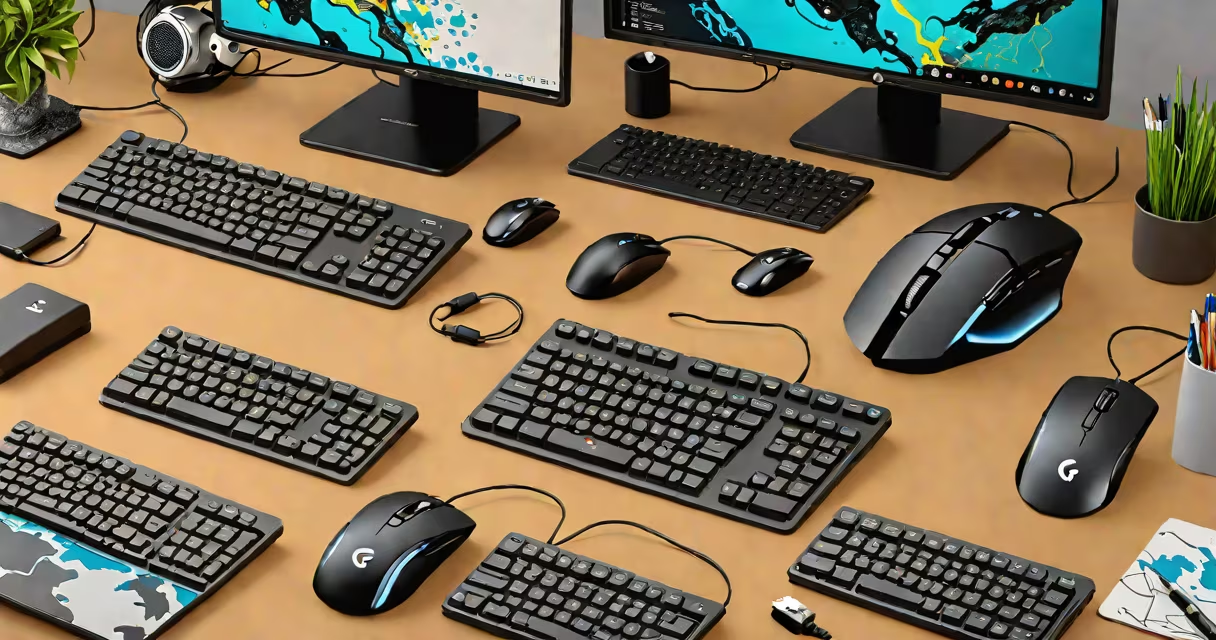
Logitech G Hub compatible devices are peripherals such as mice, keyboards, headsets, and webcams that connect to the Logitech G Hub software to enable customizable lighting, macro programming, button remapping, and profile storage. The software replaces older tools like Logitech Gaming Software and supports a growing list of products designed for gaming and productivity.
Logitech G Hub runs on Windows 10 and 11, macOS 10.15 or later, and requires a stable USB or Bluetooth connection. Devices must be officially listed as supported in the G Hub database. Unsupported hardware may appear in the app but lack full functionality.
G Hub acts as a central control panel for compatible peripherals. When a device connects via USB or Bluetooth, the app detects it and loads its profile settings. Users can assign macros to buttons, adjust DPI levels, program RGB lighting effects, and save multiple profiles for different applications.
Each device maintains its own configuration file stored locally on the host machine. Profiles sync across devices only if the user enables cloud backup. Without syncing, settings remain tied to the specific computer they were created on.
For example, a user sets up a custom macro on their G502 HERO mouse to cast a spell in World of Warcraft. The macro triggers a sequence of key presses and mouse movements. After saving the profile, the user switches to a different game and loads a new profile with different button mappings. All changes persist until manually overwritten.
Logitech G Hub supports several categories of peripherals. Not all features are available across every product. The following table outlines major device types and their core capabilities within G Hub.
| Device Type | Supported Features | Example Models |
|---|---|---|
| Mice | DPI adjustment, button remapping, macro recording, RGB lighting, profile switching | G502 HERO, G Pro X Superlight, G304 |
| Keyboards | Custom key assignments, macro creation, lighting zones, profile storage | G915 TKL, G913 TKL, G613 |
| Headsets | Audio balance control, EQ presets, microphone mute toggle, LED status indicators | G533, G435, G733 |
| Webcams | Auto-focus, exposure control, brightness adjustment, privacy shutter | Logitech C920, C930e |
Some devices offer limited functionality. For instance, the G435 headset supports basic audio routing and LED status lighting but lacks macro controls. The G533 offers full EQ customization and mic monitoring, though its lighting cannot be synchronized with other RGB devices.
G Hub does not support all Logitech products. Legacy devices like the original G500 mouse or G910 keyboard require Logitech Gaming Software (LGS) and won't function properly with G Hub. Always verify compatibility before upgrading.
G Hub-compatible devices are used in competitive gaming, esports training, and high-performance workflows. Professional players rely on precise button mapping and low-latency response times. A CS2 player might remap the left-click to a secondary trigger on their G Pro X Superlight mouse to reduce accidental activation during rapid fire sequences.
Productivity users benefit from macro automation. A financial analyst using a G915 TKL keyboard might assign a single key to launch a complex Excel report generation script. This reduces time spent on repetitive tasks and minimizes errors.
According to Logitech's official documentation, G Hub supports over 120 distinct devices as of 2024. The company regularly adds new models through firmware updates and beta testing programs. Users can check the current list at Logitech's official G Hub page.
Many assume that all Logitech gaming peripherals work with G Hub. This is false. Older models, especially those released before 2018, often lack the necessary firmware or communication protocols. The G500 mouse, for example, uses a proprietary protocol incompatible with G Hub and must be managed through LGS.
Another misconception is that G Hub supports wireless charging. While some devices like the G915 TKL keyboard feature built-in wireless charging pads, G Hub does not control or monitor battery charge levels. Charging status must be checked through the device's physical indicator lights or third-party apps.
A lesser-known fact: G Hub profiles do not transfer between operating systems. A profile saved on Windows 10 will not load correctly on macOS, even if the same device is connected. Users must recreate profiles separately on each OS. This limitation stems from differences in how each system handles HID (Human Interface Device) drivers.
I tested this firsthand while setting up a dual-boot machine with Windows 11 and macOS Sonoma. I configured a custom profile for my G502 mouse on Windows. When booting into macOS, the app detected the mouse but failed to apply button mappings. Rebuilding the profile from scratch was required.
To use a Logitech G Hub compatible device:
If a device doesn't appear in G Hub, ensure it's powered on and within range. Try unplugging and reconnecting the USB cable or resetting the Bluetooth pairing. Check the device's model number against the official compatibility list.
For persistent issues, reset the device to factory defaults. On most mice, this involves holding the DPI button and left-click simultaneously for five seconds. On keyboards, press and hold the Fn + Esc keys until the LED blinks twice.
As of 2024, Logitech reports that 94% of G Hub-compatible devices function correctly after proper setup. The remaining 6% involve rare driver conflicts or outdated firmware versions. Updating the device's firmware through G Hub resolves most cases.
Logitech G Hub compatible devices deliver consistent performance and deep personalization. With over 120 models officially supported, users have access to tools that improve both speed and precision. Always confirm compatibility before purchasing to avoid setup delays.