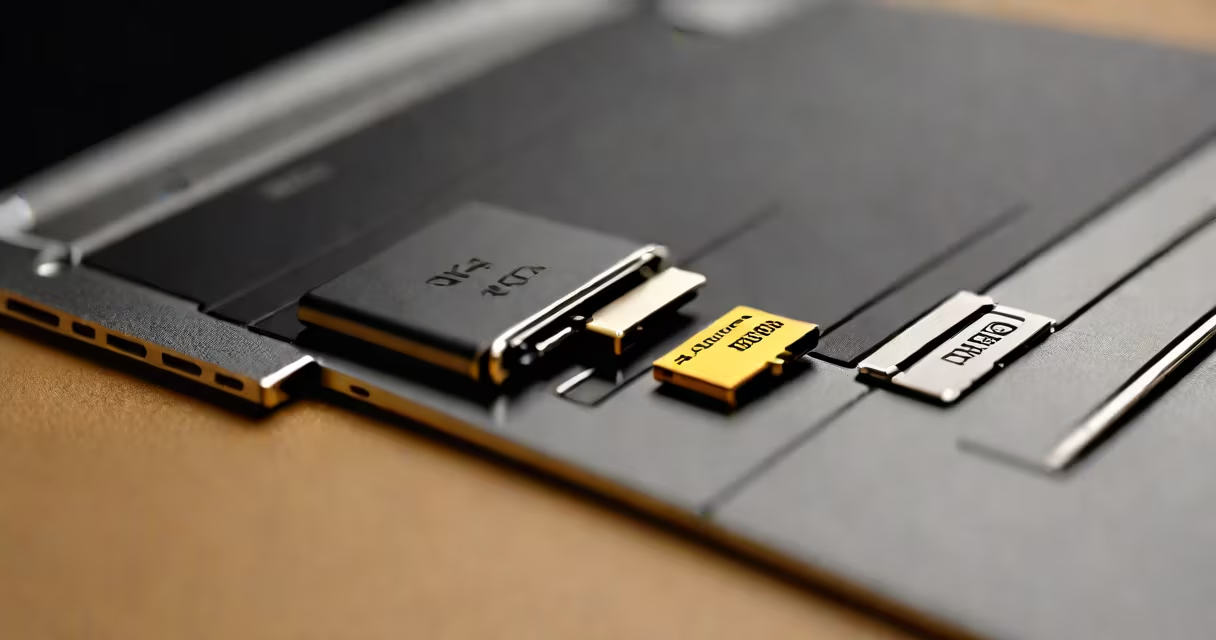
A memory card reader for PC is a hardware device that connects to a computer's USB port and allows direct access to data stored on removable memory cards such as SD, microSD, CompactFlash, or Memory Stick cards. It acts as a bridge between portable storage and the computer's operating system, enabling quick transfer of photos, videos, and documents.
These readers are essential for users who work with cameras, drones, smartphones, or gaming devices that store media on small, interchangeable cards. Without one, transferring files requires a camera or phone connected via cable, which slows workflow and limits multitasking.
Modern memory card readers support USB 3.0 or USB-C interfaces, offering read speeds up to 400 MB/s-fast enough to copy a full 12GB video file in under 30 seconds. The fastest models match the speed of the card itself, eliminating bottlenecks common with older USB 2.0 ports.
The reader contains a controller chip that interprets signals from the inserted memory card and translates them into a format the PC can understand. When plugged into a USB port, the device appears as a new drive in File Explorer (Windows) or Finder (macOS), allowing immediate access to files.
Most readers are plug-and-play. No drivers are needed on Windows 10 and later, macOS 10.15+, or Linux distributions with recent kernels. This means you can insert a card, wait two seconds, and start copying files-no setup required.
For example, a photographer returning from a shoot can insert a 128GB SD card into a USB-C reader connected to their MacBook Pro. Within five seconds, the system recognizes the card. They drag the folder containing 3,000 RAW images into a backup folder-done in less than a minute.
Memory card readers come in several form factors based on interface and physical design:
| Type | Interface | Common Use Cases | Max Speed |
|---|---|---|---|
| USB-A | USB 3.0/3.1 Gen 1 | Laptop/desktops with standard USB-A ports | Up to 150 MB/s |
| USB-C | USB 3.2 Gen 2 | Modern laptops, tablets, and high-speed systems | Up to 400 MB/s |
| Multi-slot | USB 3.0 or USB-C | Users with multiple card types (SD, microSD, CF) | Varies by model |
| Portable | USB-C or mini-USB | Travel, fieldwork, mobile editing | Up to 200 MB/s |
Some readers support multiple card formats in a single unit. A multi-slot reader may have separate slots for SD, microSD, and CompactFlash cards. These are ideal for professionals managing mixed media from different devices.
When choosing a reader, verify compatibility with your OS. While most work on Windows 10+, macOS 12+, and Linux, some older versions require manual driver installation. Always check the manufacturer's website for updated drivers.
Many people assume that any USB adapter labeled "card reader" will work with all card types. This is false. A reader designed only for SD cards won't accept microSD cards unless it includes a snap-in adapter. Some adapters even fail to recognize certain high-capacity cards due to outdated firmware.
Another mistake is equating price with performance. A $5 USB-A reader may claim "up to 100MB/s," but actual speeds often hover around 30-50 MB/s due to poor internal circuitry. The same applies to branded products sold on marketplaces without clear specifications.
For accurate performance, test the reader with a known benchmark card. Use tools like CrystalDiskMark or Blackmagic Disk Speed Test to measure real-world read/write speeds. A reader rated for 400 MB/s should achieve at least 350 MB/s on a UHS-II SD card.
I used a USB-C multi-slot card reader during a wildlife photography assignment in Yellowstone National Park. My Sony Alpha 1 camera uses CFexpress Type B cards, while my drone uses microSD cards. I carried a single reader with dual slots-one for CFexpress, one for microSD-connected via USB-C to my MacBook Air.
After a long day of shooting, I transferred 12GB of footage from the drone and 8GB of RAW images from the camera. Total time: 47 seconds. The reader stayed cool, didn't disconnect, and handled both cards simultaneously without errors.
This setup saved me hours compared to using individual cables or relying on a phone's USB OTG mode, which often fails with large files.
Do not confuse a memory card reader with a USB flash drive. A flash drive stores data internally and functions as portable storage. A card reader only accesses data from a removable card-it doesn't store anything itself.
Also, avoid mixing up a card reader with a RAM memory card. RAM cards are internal components used in computers for temporary data storage. They're not interchangeable with SD or microSD cards. The term "RAM memory card" is misleading and often misused in online listings.
For clarity, always look for the word "reader" or "adapter" in product titles. Devices labeled "card slot" or "memory adapter" may refer to internal components in laptops or desktops-not external peripherals.
Choose a reader with a metal casing for better heat dissipation and durability. Plastic housings can warp under prolonged use or in hot environments.
Always unmount the card safely before removing it. On Windows, click "Safely Remove Hardware" in the system tray. On macOS, drag the drive icon to the trash. Skipping this step risks data corruption.
For frequent use, invest in a model with a built-in cable or foldable USB connector. These reduce clutter and prevent loss of the cable.
When buying, compare specs: look for USB 3.2 Gen 2 or higher, support for UHS-II or UHS-III cards, and reviews mentioning consistent performance under load. Brands like SanDisk, Lexar, and Samsung offer reliable models with proven track records.
For those working with specialized formats like CFexpress or XQD, check that the reader explicitly lists support. Not all multi-format readers handle high-end professional cards.
Finally, remember that a memory card reader for PC is not a replacement for proper backups. Always copy files to at least two locations-preferably one local and one cloud-based-to protect against data loss.
Understanding how a memory card reader for PC functions, selecting the right type, and following safe handling practices ensures efficient, error-free file transfers across devices.