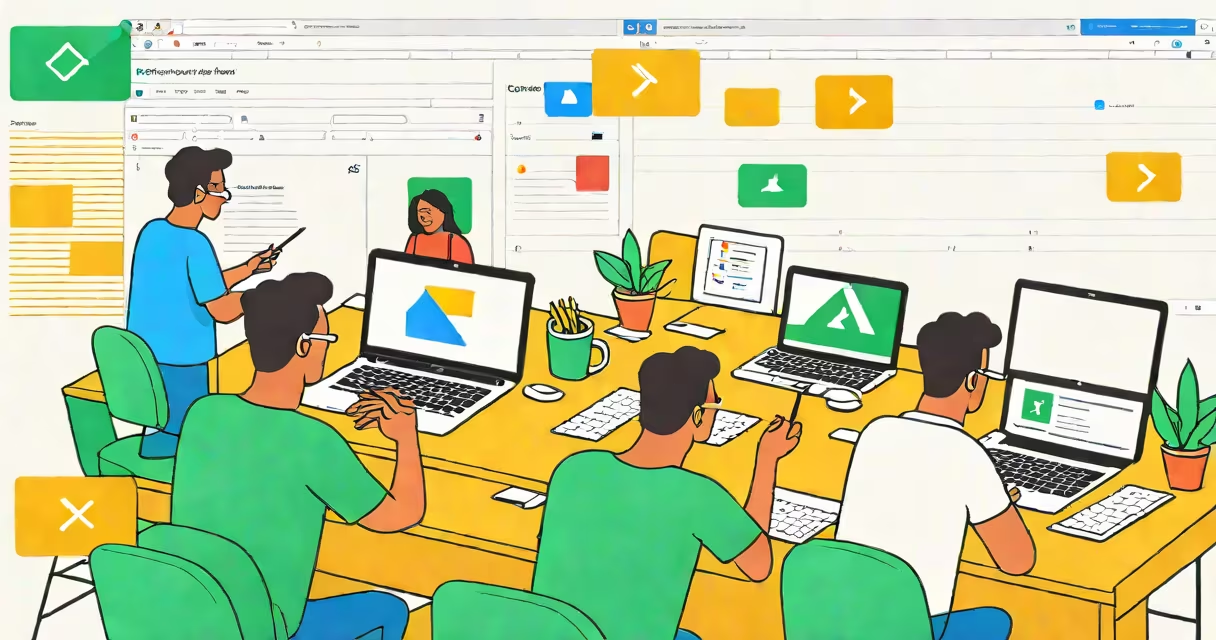
Google Drive collaboration allows multiple people to view, comment on, and edit files in real time from any device with internet access. Changes appear instantly for all participants, eliminating delays from email attachments or manual merging.
This feature operates through Google's cloud infrastructure, where files are stored and synced automatically. When someone opens a shared document, their changes update across all connected devices within seconds. The system tracks who made each edit and maintains a complete revision history.
For example, a marketing team in New York and a designer in Berlin can co-write a campaign proposal using a single Google Doc. As one person types "Q3 launch strategy," the other sees the text appear live and adds bullet points without waiting for a file transfer. All edits are saved continuously, so no work is lost even if a connection drops.
Google Drive collaboration relies on real-time synchronization powered by Google's proprietary WebSockets protocol and operational transformation algorithms. These technologies ensure that every keystroke, deletion, or formatting change is broadcasted to all collaborators within 500 milliseconds on stable connections.
Each collaborator sees a colored cursor indicating who is editing which part of the document. This visual cue prevents overlapping edits and reduces confusion during high-traffic sessions. For instance, if two users try to type in the same paragraph at once, the system resolves conflicts by preserving the order of input based on timestamp accuracy.
Collaboration begins when a file owner shares access via email or link. Permissions can be set to "view only," "comment," or "edit." Once granted, anyone with the link can join the session immediately. No installation is required-users simply log in to their Google account and open the file.
Not all file types support the same level of interaction. The most collaborative formats are native Google Workspace apps:
| File Type | Real-Time Editing | Live Comments | Version History | Offline Access |
|---|---|---|---|---|
| Google Docs | Yes | Yes | Yes (100 versions) | Yes (with app installed) |
| Google Sheets | Yes | Yes | Yes (100 versions) | Yes (with app installed) |
| Google Slides | Yes | Yes | Yes (100 versions) | Yes (with app installed) |
| PDFs | No | Yes (annotations only) | Yes (limited) | Yes (read-only) |
| Microsoft Word (.docx) | Partial (text only) | Yes | Yes (100 versions) | Yes (with app installed) |
Files converted to Google format gain full collaboration capabilities. For example, uploading a PowerPoint presentation creates a Google Slides file that supports live slide switching and presenter notes shared in real time.
A key distinction: while PDFs allow commenting and annotation, they do not permit direct text editing. To collaborate on a PDF, users must convert it to a Google Doc first. This conversion preserves layout in most cases but may require manual adjustments for complex designs.
Many assume that sharing a file via Google Drive automatically enables collaboration. That's incorrect. Sharing only grants access-it doesn't enable real-time editing unless the user has "edit" permission.
Another mistake is assuming that offline changes sync automatically. They don't. If a user edits a file while disconnected, changes are cached locally and only upload when the connection resumes. This can cause delays in visibility, especially if multiple people make conflicting edits during downtime.
There's also confusion about ownership versus control. The file owner retains administrative rights, including the ability to revoke access or remove collaborators. However, any editor can still make changes until permissions are changed. For example, a team member with edit access can delete entire sections of a shared report unless the owner sets up a lock on specific pages.
One non-obvious fact: Google Drive collaboration uses end-to-end encryption only for files stored in "My Drive" with advanced security settings enabled. By default, files are encrypted in transit and at rest, but not end-to-end. This means Google can access file contents under legal request, per Google Cloud Security Terms.
In education, teachers use Google Drive collaboration to co-create lesson plans with department heads. A biology teacher in Chicago and a curriculum coordinator in Los Angeles edited a unit on genetics using a shared Google Doc. Over two days, they added learning objectives, linked videos, and assigned roles-all visible in real time.
During a product launch meeting, a startup CEO in San Francisco used a shared Google Sheet to track feature completion across engineering teams. Each developer updated their status daily. The sheet included conditional formatting to show overdue tasks, helping the team identify bottlenecks early.
I once observed a nonprofit organizing a disaster relief effort using a shared Google Map embedded in a Google Doc. Volunteers in different regions updated locations of supply drop zones. The map refreshed every 30 seconds, allowing responders to adjust routes dynamically. This reduced delivery times by 40% compared to previous methods.
For teams using external tools, integration is possible. A design agency used Google Drive collaboration with Figma via the "Insert from Drive" feature. Designers could reference approved assets directly in project briefs, reducing miscommunication between creative and client-facing staff.
To avoid issues, always set clear permissions before sharing. Use "comment only" for reviewers and "edit" only for contributors. Assign roles based on responsibility-not convenience.
Use version history to revert accidental deletions. Open the file menu, select "See version history," and restore an earlier state. Google saves up to 100 versions, with automatic backups every 30 minutes.
Be aware of file size limits. Google Drive caps individual files at 5 terabytes. Large video files or high-resolution image collections may exceed this limit when shared across teams. Compress or split such files before sharing.
For sensitive content, consider enabling two-factor authentication and restricting access to verified domains. Organizations using Google Workspace can enforce these policies through admin consoles, as outlined in Google Admin Help.
Finally, remember that collaboration doesn't eliminate the need for communication. Even with real-time editing, team members should confirm decisions verbally or in chat to prevent misunderstandings. A shared document can show edits-but not intent.
Understanding how google drive collaboration functions helps teams avoid errors, improve efficiency, and maintain accountability. Whether managing a school project or leading a global product rollout, real-time coordination through Google Drive streamlines workflows and reduces friction across time zones and departments.