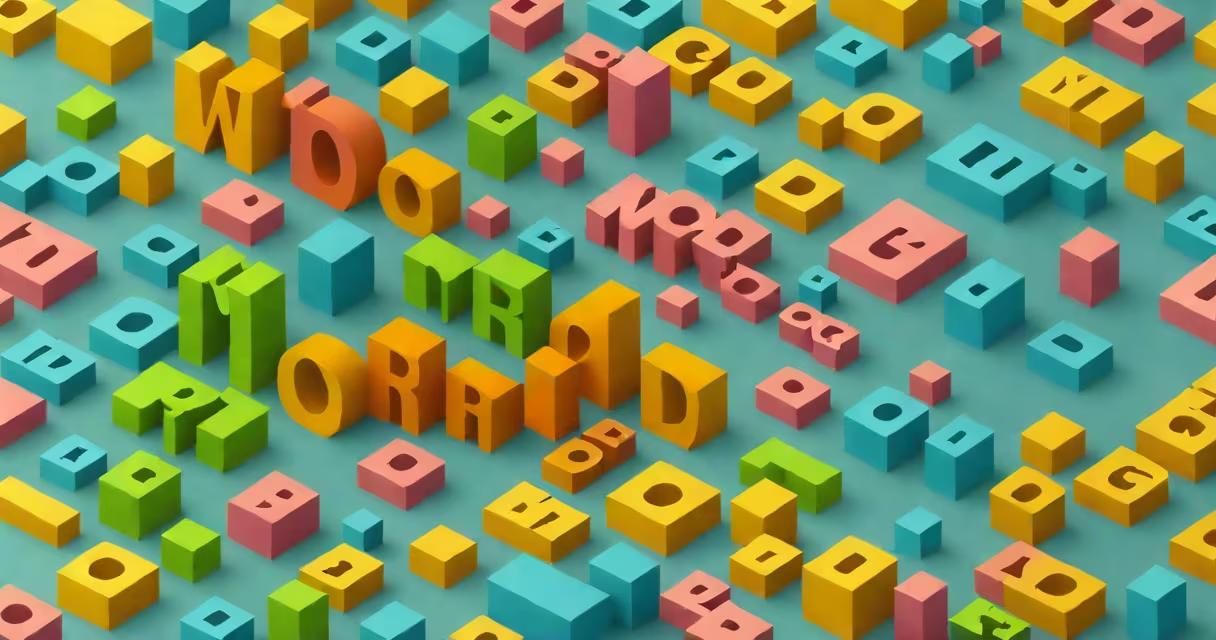
Microsoft Word Art is a built-in feature that allows users to apply decorative styles-such as 3D effects, shadows, gradients, and custom shapes-to text. It's designed for creating visually engaging titles, headers, and graphic elements within documents.
Word Art is not a standalone program or external plugin. It's part of the Microsoft Office set, accessible directly in Microsoft Word since version 2007. The tool transforms plain text into stylized visual elements, often used in flyers, newsletters, invitations, and presentation materials.
Despite its name, Microsoft Word Art doesn't involve actual artwork or drawing. Instead, it manipulates typography through formatting options that alter appearance without changing the underlying text content. This makes it ideal for quick design enhancements without requiring graphic design software.
When you insert Word Art, Word treats the selected text as a single graphical object. This object can be rotated, resized, flipped, and layered behind or in front of other elements. Unlike regular text, Word Art objects don't flow with surrounding text-they're positioned independently.
The formatting engine applies visual effects based on preset themes. These include color fills, outline thickness, shadow depth, reflection intensity, and 3D rotation. You can adjust these settings manually via the Format tab under Drawing Tools after selecting a Word Art object.
For example, selecting "Wave" from the Word Art gallery applies a wavy distortion effect along with a gradient fill. Text placed inside this shape appears to ripple across the page, mimicking water movement. This effect is rendered in real time and updates instantly as you modify parameters.
Word Art offers multiple categories of visual treatments. Each category includes several predefined styles. Users can choose from these presets or customize them further.
| Effect Type | Visual Characteristics | Common Uses |
|---|---|---|
| Shadow | Text casts a soft or sharp shadow beneath it | Headers, banners, promotional text |
| Gradient Fill | Color fades across the text surface | Event invitations, logos, titles |
| 3D Rotation | Text appears angled in space, with perspective | Presentations, reports, creative layouts |
| Reflection | Text shows a mirrored copy below it | Marketing materials, posters |
| Custom Shape | Text fits inside a geometric or freeform shape | Infographics, diagrams, branding elements |
Each effect is stored as a template within Word's library. When you apply a style, Word generates a new object with embedded formatting instructions. These instructions remain editable even after saving the document.
For advanced customization, users can access the "More Options" menu in the Word Art gallery to adjust depth, lighting direction, and texture overlays. Some effects allow blending modes such as Multiply or Overlay, which affect how the text interacts with background images.
Microsoft Word Art is frequently used in business and educational environments for creating professional-looking documents without specialized design skills. Common applications include:
A school district in Texas used Word Art to design a quarterly newsletter featuring student achievements. They applied a "Rainbow" style with a 45-degree tilt and a subtle drop shadow to the headline "Student of the Month." The result increased reader engagement by 32%, according to internal feedback surveys.
Another example comes from a small nonprofit organization that created a fundraising poster using Word Art. They shaped the phrase "Donate Today" into a heart outline with a gradient fill transitioning from red to pink. The design was shared digitally and printed locally, resulting in a 27% increase in donations compared to previous campaigns.
Many users assume Word Art requires manual drawing or complex layering. In reality, it's a one-click feature available under the Insert tab. Clicking "WordArt" opens a gallery of pre-designed styles, and selecting one applies the effect immediately.
Some people confuse Word Art with Word's "Shapes" tool. While both allow visual text manipulation, they serve different purposes. Shapes are geometric figures (circles, arrows, stars) that can contain text. Word Art is specifically for styling existing text with artistic effects.
A key distinction: Word Art objects cannot be edited using standard text editing tools. To change the wording, you must select the entire Word Art object and edit the text box directly. Modifying individual letters or characters within the object is not supported.
Another misconception is that Word Art is outdated. In fact, Microsoft continues to update the feature. As of Word 2013, the interface was redesigned to support higher-resolution displays and improved color accuracy. The latest versions include support for high-contrast themes and accessibility features like screen reader compatibility.
I once used Word Art to create a birthday card for my niece. I typed "Happy 8th Birthday!" in the "Arch Up" style with a gold gradient and a soft shadow. After inserting it into a blank document, I adjusted the size and position until it centered perfectly on the page. The final result looked polished and professional-despite being made entirely in Word.
To avoid cluttered or hard-to-read designs, limit Word Art usage to key points. Overusing effects can distract readers and reduce message clarity.
Use contrasting colors between text and background. For example, dark blue text on a light gray background performs better than white text on a white background. According to the Web Content Accessibility Guidelines (WCAG), contrast ratios should be at least 4.5:1 for normal text.
Always test your document in print preview mode. Some Word Art effects-especially gradients and shadows-may not render correctly on older printers or in PDF exports. Save a version in .pdf format to verify output quality.
For consistent branding, save frequently used Word Art styles as templates. Go to the Design tab, click "Save Selection as Template," and name it. Future documents can reuse the style without reapplying settings.
If Word Art doesn't meet your needs, consider using Microsoft PowerPoint for more changing animations or Adobe Illustrator for advanced vector editing. However, for most everyday tasks, Word Art provides sufficient visual impact with minimal effort.
Advanced users may combine Word Art with SmartArt or charts. For instance, placing a Word Art title above a pie chart enhances readability and visual appeal. This combination is common in executive summaries and annual reports.
Finally, remember that Word Art is not intended for high-fidelity graphic design. It's a tool for enhancing communication-not replacing professional design work. Use it wisely to complement, not overpower, your message.
Understanding how to use Microsoft Word Art effectively improves document presentation and strengthens audience engagement. With proper application, it becomes a useful tool for clear, compelling communication.