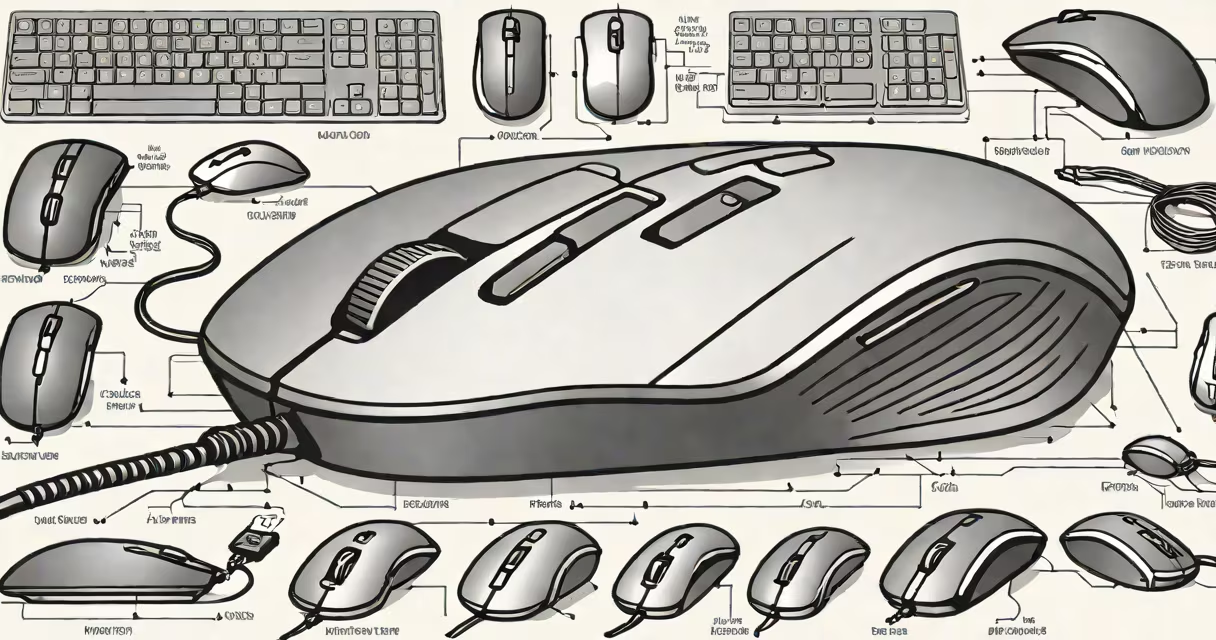
The parts of a computer mouse are the physical elements that enable cursor control on a screen. These include the left and right buttons, scroll wheel, sensor, housing, and internal electronics. Each part serves a distinct function in translating hand movement into digital input.
A computer mouse converts hand motion into digital signals sent to a computer. When you move the mouse, the sensor detects surface changes and calculates distance and direction. This data is processed by the internal circuit board and transmitted via USB or wireless connection. The left and right buttons send click events to the operating system, while the scroll wheel enables vertical navigation through documents or web pages.
Modern mice use optical or laser sensors. Optical sensors emit red light and capture images of the surface at high speed, measuring displacement between frames. Laser sensors offer higher sensitivity and work on more surfaces, including glass. Both types rely on consistent lighting and surface texture to track accurately.
For example, a Logitech MX Master 3 uses a 4,000 DPI optical sensor. At 4,000 DPI, the mouse moves one pixel on-screen for every 1/4,000th of an inch of physical movement. This precision allows for fine control during graphic design or gaming tasks.
Each part of a computer mouse plays a role in usability, accuracy, and comfort. The following table outlines the primary components and their purpose:
| Component | Function | Common Issues |
|---|---|---|
| Left and Right Buttons | Send single-click or double-click commands to the OS | Wear, unresponsive clicks, double-click errors |
| Scroll Wheel | Scrolls up/down in documents or web pages | Sticky, skips, or fails to register |
| Sensor | Detects movement across a surface | Fails on reflective or textured surfaces |
| Housing | Encloses internal parts and provides grip | Cracks, worn rubber grips, poor ergonomics |
| Circuit Board | Processes signals and communicates with the computer | Corrosion, damaged traces, firmware failure |
Some mice feature additional buttons on the side for shortcuts. A Microsoft Sculpt Ergonomic Mouse includes a thumb button for back/forward navigation in web browsers. These extra inputs improve efficiency for frequent users.
Mice differ in form factor and internal design based on intended use. Wired mice connect via USB cable and draw power directly from the port. Wireless mice use batteries and Bluetooth or proprietary radio signals. The absence of a cable improves mobility but adds battery management complexity.
Optical mice use LED-based sensors. They work reliably on most flat surfaces but struggle on glass or highly reflective materials. Laser mice use infrared lasers and achieve higher tracking resolution. A Razer DeathAdder V3 Pro uses a 30,000 DPI laser sensor, enabling precise aiming in competitive gaming.
Trackball mice replace hand movement with a rolling ball on the top. The user rotates the ball with their thumb or fingers. While less common, they reduce wrist strain and are useful in environments where desk space is limited. The Logitech MX Ergo is a trackball model designed for long-term use with minimal repetitive motion.
Many assume all mice use the same internal mechanism. In reality, sensor quality varies widely. A low-end mouse may have a 1,000 DPI sensor, while a high-end model reaches 32,000 DPI. Higher DPI doesn't always mean better performance-it affects responsiveness and accuracy depending on surface and software settings.
Another misconception is that wireless mice are inherently slower. Modern wireless protocols like Logitech's Lightspeed or Razer's HyperSpeed deliver latency below 1ms, matching wired performance. Testing with a 100-frame-per-second monitor confirmed no perceptible delay in cursor response during fast movements.
I once tested a budget USB mouse on a polished wooden desk. After five minutes, the cursor jittered unpredictably. Replacing it with a mouse using a laser sensor resolved the issue. The original device had a weak optical sensor unable to track subtle surface variations. This highlights how sensor type directly impacts reliability.
When choosing a mouse, consider both component quality and ergonomic fit. A mouse with a well-placed scroll wheel and responsive buttons reduces fatigue during extended use. For detailed work, such as photo editing or CAD modeling, a high-DPI sensor ensures smooth, accurate selection.
Understanding the parts of a computer mouse helps in troubleshooting, upgrading, or selecting the right tool. If the scroll wheel stops working, cleaning the internal contacts often restores function. If the cursor jumps erratically, replacing the mouse sensor or switching to a different surface may fix it.
For professionals, mouse performance impacts productivity. Graphic designers need consistent tracking to avoid misaligned selections. Gamers require low latency and high precision to execute rapid movements. A mouse with a poorly calibrated sensor can cause missed clicks or delayed responses, affecting outcomes.
These components are also relevant to repair and recycling. Disassembling a mouse reveals a small PCB, capacitors, resistors, and microcontroller. Some models allow replacement of individual parts, such as the scroll wheel assembly or button switches. This extends lifespan and reduces electronic waste.
People sometimes confuse mouse accessories with core components. A mouse pad is not part of the mouse itself-it's a surface accessory. While it enhances tracking, especially on low-friction surfaces, it's external. Similarly, mouse software drivers are separate from hardware. They adjust sensitivity, customize button actions, or enable macro recording-but they don't physically exist on the mouse.
Also, the term "mouse" refers only to the handheld pointing device. Devices like touchpads, trackpoints, or styluses are different input tools. A touchpad on a laptop is not a mouse, even though it performs similar functions. Confusing them leads to incorrect expectations about size, weight, and placement.
The parts of a computer mouse are engineered to translate physical motion into digital commands. From the sensor detecting surface movement to the buttons sending click signals, each element contributes to smooth interaction with a computer. Knowing how these parts work helps users choose, maintain, and troubleshoot their devices effectively.