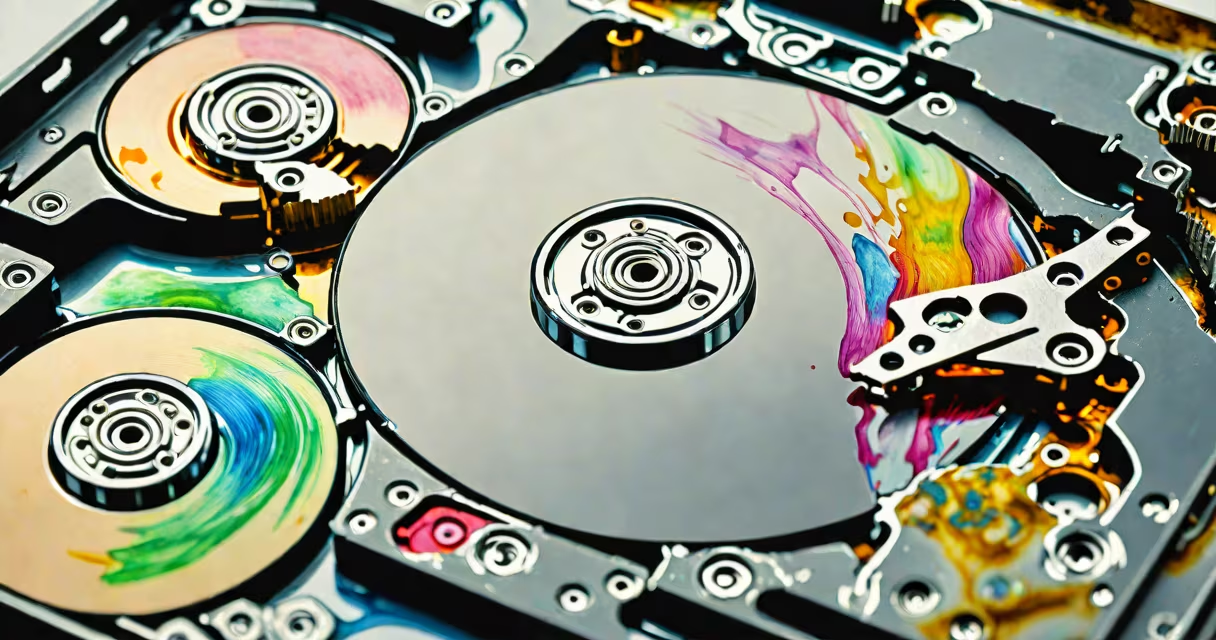
A corrupted hard drive fails to read or write data correctly due to errors in its file system, bad sectors, or physical damage. This can result in inaccessible files, system crashes, or complete drive failure. Corruption often begins silently and escalates without warning.
Hard drives store data on spinning magnetic platters. When the operating system writes data, it records the location using a file allocation table. If power drops during a write, the table becomes inconsistent. If a sector wears out and the drive cannot remap it, data becomes unreadable. These issues create file system errors that manifest as corrupted drives.
Common causes include sudden power loss, improper ejection of external drives, malware infections, and aging hardware. A drive may still spin and appear in the system, but fail to return requested files. The Windows error "The disk is write-protected" or "File system is not recognized" often signals corruption. macOS shows "Disk Utility cannot repair the disk" under similar conditions.
Corruption doesn't always mean data is gone. It means the path to the data is broken. The file system acts like a map. If the map is torn or rewritten incorrectly, the drive can't find where files are stored-even if the files remain physically intact on the platters.
Symptoms include slow performance, frequent crashes, missing files, or error messages like "Access Denied," "Invalid Partition Table," or "CHKDSK failed." These indicate the drive's internal structure is damaged. Even if the drive powers on, applications may freeze when trying to access documents or media.
For example, a user reported their 1TB Seagate Barracuda stopped showing folders after a storm-induced power surge. The drive spun up but returned "Error 0x0000007B" on boot. Running chkdsk in Command Prompt showed 12,000 bad clusters. The file system was unrecoverable through standard tools.
Corruption falls into two categories: logical and physical. Logical corruption affects the file system or directory structure. Physical corruption damages the actual storage surface.
| Type | Root Cause | Common Symptoms | Recovery Feasibility |
|---|---|---|---|
| Logical | Improper shutdown, software bugs, virus attacks | Files disappear, "disk full" despite space available, system freezes | High (software tools can rebuild metadata) |
| Physical | Head crashes, worn platters, impact damage | Clicking sounds, grinding noises, drive not detected | Low (requires cleanroom repair or professional recovery) |
Logical corruption is more common and often fixable. Tools like Windows' built-in chkdsk or macOS's First Aid can scan and repair file system structures. But they only work if the underlying data hasn't been overwritten.
Physical corruption is irreversible without specialized equipment. A failing drive may emit a rhythmic clicking sound-known as the "click of death"-caused by the read/write head repeatedly seeking data on damaged sectors. Once this sound starts, the drive should be powered off immediately to prevent further damage.
Software-based recovery tools such as Recuva, TestDisk, or PhotoRec can restore files from logically corrupted drives. They bypass the file system and search raw data patterns. These tools recover photos, documents, and videos based on known file signatures (e.g., JPEG starts with FF D8 FF).
For example, I recovered 672 images from a corrupted 2TB Western Digital My Book external drive after a firmware glitch. The drive appeared in Disk Management but showed "RAW" status. Using TestDisk, I rebuilt the partition table and extracted files via PhotoRec. Recovery took 4 hours and retrieved 92% of original data.
Professional data recovery services cost $300-$1,500 depending on complexity. They operate in cleanrooms to avoid contaminating platters. For drives with head crashes or severe wear, recovery rates drop below 50%. Internal drives with encrypted partitions require decryption keys-without them, even experts cannot access data.
Never attempt to repair a corrupted drive with third-party software if it makes unusual noises. Overwriting data during recovery attempts can permanently erase fragments. Always disconnect the drive from the computer and use a USB-to-SATA adapter for read-only access.
Regular backups reduce risk. Use the 3-2-1 rule: three copies, two media types (e.g., SSD and cloud), one offsite. Backups protect against both logical and physical failure.
Monitor drive health with S.M.A.R.T. tools. CrystalDiskInfo (Windows) or smartctl (Linux) report attributes like reallocated sector count and pending sectors. A high count indicates imminent failure. Set alerts for values above thresholds defined by manufacturers.
Always safely eject drives. On Windows, use "Safely Remove Hardware" before unplugging. On macOS, drag the drive icon to the trash. Skipping this step increases the chance of file system corruption during disconnection.
Corruption is not the same as deletion. Deleted files aren't erased-they're marked as available space. Until new data overwrites the old, recovery remains possible. However, corruption alters the data itself, not just the pointer to it.
When a drive shows signs of corruption, stop using it immediately. Continued access increases the chance of overwriting critical sectors. Power it down, connect it externally, and begin recovery using proven tools.
Corrupted hard drive failures stem from software inconsistencies, hardware degradation, or environmental stress. Early detection and backup prevent data loss. Recovery is possible-but only if action is taken before overwrite occurs.
Understanding the difference between logical and physical corruption guides your response. Software fixes apply only to the former. Physical damage requires expert intervention. Always treat a corrupted hard drive as a potential data emergency.