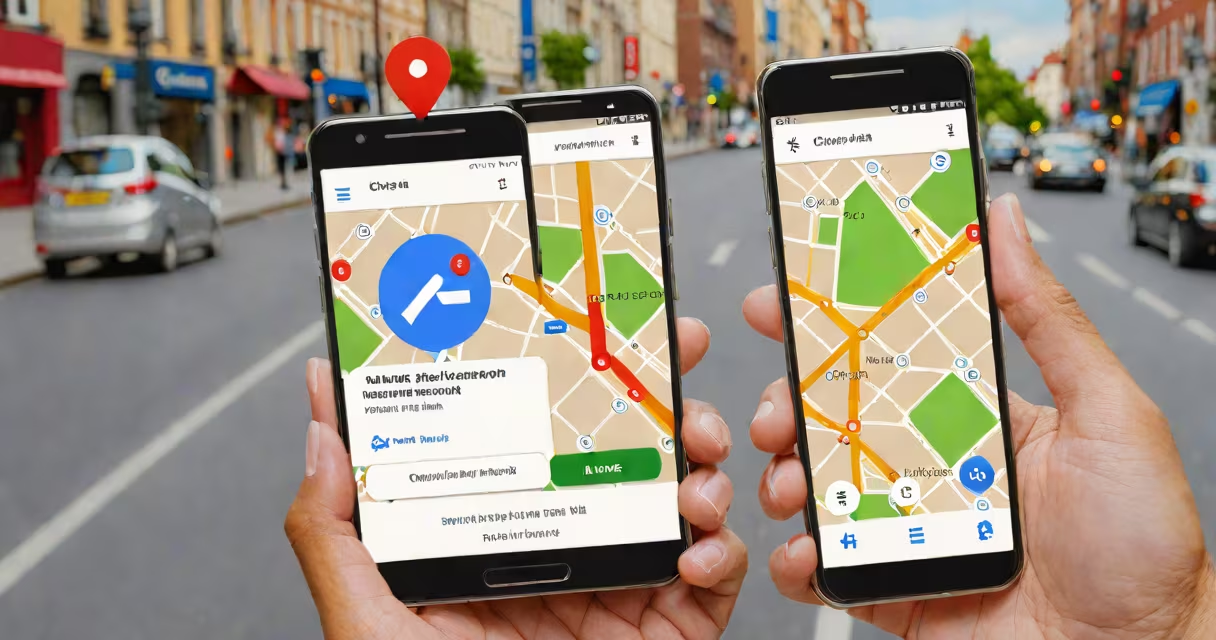
To sign into Google Maps, open the app or website and enter your Google Account credentials. You can use any device with internet access-mobile, tablet, or desktop browser.
Signing into Google Maps syncs your saved locations, recent searches, and personalized routes across devices. It also enables features like real-time traffic updates, transit directions, and the ability to save places to your list.
The process requires a valid Google Account. If you don't have one, create it at accounts.google.com/signup. Once created, you can use the same email and password to sign into Google Maps anytime.
When you sign into Google Maps, the app authenticates your identity through Google's secure sign-in system. This uses OAuth 2.0, a standard protocol that allows apps to request limited access to user data without storing passwords.
Your location history, saved places, and search activity are stored in your Google Account. These are linked to your profile and accessible only after successful authentication. The system checks your credentials against Google's global identity servers.
After signing in, Google Maps remembers your preference settings-like map style, default transport mode, and language-across all devices. This ensures consistent behavior a web browser.
On Android or iPhone:
On a computer:
If you're using a work or school account, ensure your organization allows third-party app access. Some enterprise policies restrict sign-ins to approved domains.
Users often report being unable to sign in due to incorrect passwords, disabled accounts, or outdated app versions. Always verify your internet connection and try restarting the app.
If you see "Account not found," double-check the email address. Gmail addresses are case-insensitive, but typos still prevent access. Use the "Forgot password?" link to reset if needed.
For persistent failures, clear the app cache on mobile devices. On Android: Settings > Apps > Google Maps > Storage > Clear Cache. On iOS: Delete and reinstall the app.
Once signed in, you gain access to personalized features. Save favorite spots, create custom maps, and share live location with friends.
You can also view your past searches and locations through Google Maps Timeline. This feature tracks your movement history and is available only to users who've enabled Location History in their Google Account settings.
For example, if you frequently visit a coffee shop in Seattle, Google Maps will suggest it when you search nearby. It may even show the current wait time based on historical data.
Google Maps supports multiple account types: personal, business, and organizational. Each has different permissions and data visibility.
| Account Type | Access Level | Use Case |
|---|---|---|
| Personal (Gmail) | Full access to saved places, search history, and timeline | Individual navigation, trip planning, saving favorite restaurants |
| Business (Google Workspace) | Same as personal, plus admin controls for team sharing | Team route coordination, shared business listings |
| Organizational (education or enterprise) | Limited to approved domains; may restrict public features | School or company-wide navigation tools |
Business accounts can manage Google Business Profile listings directly from Maps. This allows owners to update hours, add photos, and respond to reviews-all without leaving the app.
Many assume that signing into Google Maps automatically shares their location with others. That's false. Location sharing requires a separate action-sending a real-time location link via Messages, Gmail, or the Share menu.
Another misconception is that signing in gives Google permanent access to your location. Google only stores location data if you explicitly enable Location History. Even then, you can disable it at any time.
I once tested this by disabling Location History on my phone. After signing into Google Maps, the app no longer suggested places I'd visited before. My search results remained accurate, but personalization dropped.