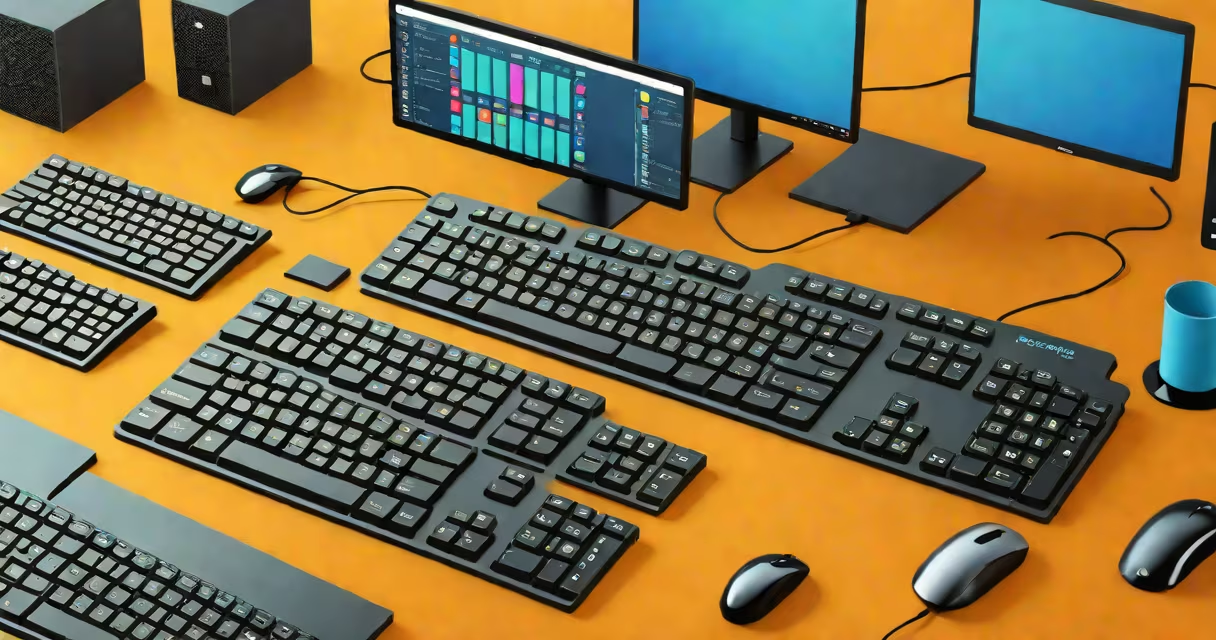
A keyboard for multiple computers is a hardware solution that allows a single keyboard and mouse to control two or more computers simultaneously through a KVM switch. This setup eliminates the need to physically swap input devices between machines, streamlining workflows in environments with multiple systems.
KVM stands for Keyboard, Video, Mouse. The switch acts as a central hub, routing signals from your peripherals to the active computer. When you press a button or move the mouse, the KVM directs the input to the currently selected system. This enables rapid switching between machines without unplugging cables or rebooting.
For example, a developer running a Linux server, a Windows workstation, and a macOS laptop can use one keyboard and mouse to manage all three. A single hotkey-like Ctrl+Tab-switches focus instantly. This reduces clutter, saves time, and improves precision during tasks like debugging, file transfers, or monitoring logs across systems.
The core component is a KVM switch, which connects via USB to the keyboard and mouse, and via HDMI, DisplayPort, or VGA to each computer's monitor. Some models support USB-C or Thunderbolt for high-speed data transfer and power delivery.
When you plug in your keyboard and mouse to the KVM, they appear as standard input devices to each connected computer. The switch manages which machine receives input based on user selection. Most switches offer manual switching via buttons on the unit or software shortcuts, while higher-end models support automatic switching when a computer wakes from sleep or detects activity.
For instance, a user working on a Raspberry Pi and a desktop PC can switch between them by pressing a dedicated key on the keyboard. The Pi's terminal session remains active, and the desktop's window manager responds instantly. No delay, no lag-just smooth control.
KVM switches come in several configurations based on the number of computers supported and the type of video output:
| Number of Computers | Video Support | Use Case | Example Model |
|---|---|---|---|
| 2 | HDMI, USB-C | Home office, dual-boot setups | Belkin 2-Port KVM |
| 4 | Dual HDMI, DisplayPort | Server rooms, development labs | ATEN CS1784 |
| 8+ | Multiple HDMI, USB 3.0 | Data centers, broadcast studios | AVerMedia KVM-8000 |
Some switches support audio passthrough, allowing speakers or headphones to remain connected to one system while switching. Others integrate with IP-based remote access tools, enabling control from a different location.
One non-obvious feature: many KVM switches maintain USB device recognition even when switching. A USB flash drive plugged into the KVM appears as a shared storage device across all connected systems-ideal for transferring files without copying.
People often mistake a keyboard for multiple computers with a wireless keyboard that supports multiple Bluetooth devices. While both allow switching between inputs, a Bluetooth keyboard pairs with each device separately and requires manual reconnection. A KVM switch handles the routing automatically and maintains stable connectivity.
Another error is assuming all KVM switches support high-resolution displays. A basic model may only handle 1080p at 60Hz. For 4K or dual-monitor setups, verify the switch specifies support for 4K@60Hz, HDR, and DP 1.4 or HDMI 2.0.
I once tested a $30 KVM switch advertised as "4K compatible." It failed to display 4K content on a MacBook Pro. After checking the specs, I found it only supported 1080p. The lesson: always confirm resolution and refresh rate support before buying.
System administrators managing 10 servers in a rack use a KVM switch to access each machine's console without needing a separate monitor and keyboard per server. This cuts cable clutter and reduces physical space usage.
Graphic designers working on a Windows machine for Photoshop and a Mac for Final Cut Pro use a single keyboard and mouse to switch between applications without losing context. They can copy a layer from one app and paste it into another smoothly.
Even gamers benefit. A player running a Steam Deck and a high-end gaming PC can switch between them with a single keystroke, using the same controller and keyboard for both systems.
To set up a keyboard for multiple computers:
Ensure all computers are powered on. Some KVMs require the host system to be awake for proper handoff. If a computer is off, the switch may not detect it until it boots.
For advanced users, some KVMs support firmware updates to fix compatibility issues. Check the manufacturer's website for known bugs-e.g., certain models have problems with macOS Big Sur due to USB HID protocol changes.
A keyboard for multiple computers is not a replacement for multiple monitors or multiple workspaces-it's a tool for centralized control. It enhances efficiency, especially when managing diverse systems with different operating systems.
For those who frequently switch between machines, a KVM switch reduces cognitive load and prevents errors caused by typing on the wrong system. It's a practical upgrade for developers, IT pros, and creative professionals.
When choosing a model, prioritize one with clear documentation, tested compatibility with your OS versions, and support for your required resolutions. Look for reviews on Tom's Hardware and AnandTech to avoid known failures.
With the right setup, a keyboard for multiple computers becomes invisible-just a tool that lets you focus on work, not on switching between tools.