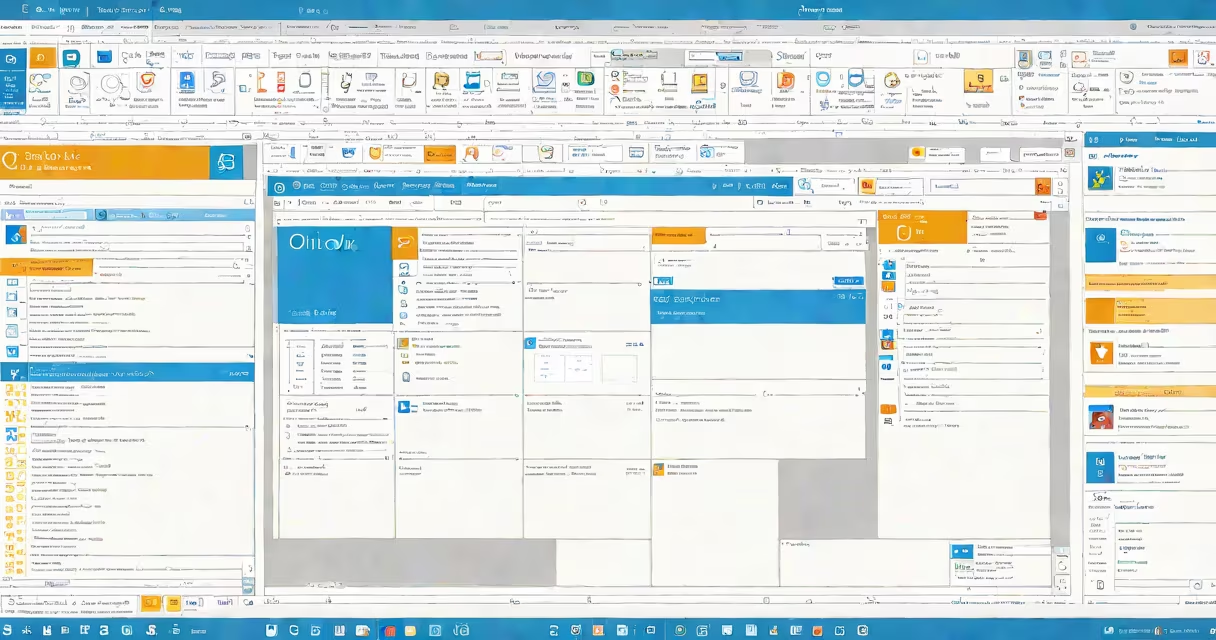
The Outlook desktop client is a Windows-based application that provides full access to email, calendars, contacts, tasks, and notes. It runs independently of web browsers and integrates with Microsoft Exchange, Office 365, Gmail, iCloud, and other email services through IMAP or POP protocols.
Unlike browser-based versions of Outlook, the desktop client operates locally on your machine. It stores data in a .pst (Personal Storage Table) or .ost (Offline Storage Table) file, allowing offline access and faster performance for large mailboxes. This makes it ideal for users managing hundreds of emails daily or working in low-connectivity environments.
Outlook desktop client is part of the Microsoft Office set. It's available in both free and paid editions. The free version, Outlook.com, runs in a browser. The desktop client requires a license via Microsoft 365, Office 365, or a standalone purchase. It supports Windows 10 and 11, with limited functionality on older systems.
When you set up the Outlook desktop client, it connects to your email provider using either IMAP, POP, or MAPI (for Exchange servers). MAPI offers the most complete feature set, including shared calendars, delegate access, and real-time updates. IMAP syncs messages across devices but doesn't support all Exchange-specific features.
Once configured, Outlook downloads messages and calendar entries to a local database (.pst or .ost). This allows you to read emails, edit events, and manage tasks even when disconnected from the internet. Changes sync automatically when connectivity resumes.
For business users, the client supports group policies, encryption, and data loss prevention (DLP) rules enforced by IT departments. These settings are managed through Active Directory or Microsoft Intune, ensuring compliance with organizational security standards.
Outlook desktop client includes five core modules:
Advanced features include message rules (automated sorting), categories, flags, and integration with Microsoft Teams. You can schedule meetings directly from an email, invite attendees, and receive automatic responses based on your availability.
Outlook supports multiple account types simultaneously. A single window can display Gmail, Exchange, and iCloud mailboxes side-by-side. This reduces context switching and improves workflow efficiency.
There are three primary versions of the Outlook desktop client:
| Version | Platform | Account Support | Sync Type | Use Case |
|---|---|---|---|---|
| Outlook for Windows (desktop) | Windows 10/11 | Exchange, Office 365, Gmail, iCloud, IMAP, POP | IMAP/POP/MAPI | Business, enterprise, power users |
| Outlook Mobile (iOS/Android) | Smartphones | Same as above | Push notifications | On-the-go access |
| Outlook Web App (OWA) | Browser | Exchange, Office 365, Gmail | Web-based sync | Quick access, minimal setup |
Outlook for Windows is the most feature-rich. It supports advanced search filters, custom views, and scripting via VBA (Visual Basic for Applications). For example, you can create a rule that moves all emails from a specific sender to a folder labeled "Urgent" and marks them with a red flag.
A common misconception is that the desktop client only works with Microsoft Exchange. While it excels with Exchange, it supports Gmail and iCloud via IMAP. However, iCloud requires two-factor authentication and app-specific passwords for secure login.
Many users assume that syncing between Outlook and mobile devices happens instantly. In reality, sync delays occur due to server throttling, network latency, or incorrect sync settings. For example, if the "Send/Receive" interval is set to 15 minutes, changes may take up to that long to appear on other devices.
Another error is confusing .pst and .ost files. A .pst file is a personal storage file used when connecting via IMAP or POP. It's stored locally and can grow large over time. A .ost file is an offline copy used with Exchange and is synchronized with the server. If you delete a .ost file, Outlook recreates it upon reconnecting-but this process can take several hours for large mailboxes.
Outlook desktop client is not a replacement for email archiving solutions. While it can archive old messages to a .pst file, this method lacks retention policies, legal hold features, and e-discovery tools. Enterprises should use Microsoft Purview or third-party archiving platforms for compliance.
I used the Outlook desktop client for six months while managing a marketing team's email traffic. We had 12 team members, 300+ daily emails, and 15 shared calendars. Setting up the client with our company's Exchange server took under 10 minutes using the "Add Account" wizard.
We created a rule to auto-sort all emails from clients into a folder called "Client Requests." The rule applied color coding (blue for high priority), flagged them, and sent a notification to the team's Slack channel. This reduced response time from 4 hours to under 30 minutes.
During a week-long office outage, we continued scheduling meetings and updating tasks using the offline mode. When service resumed, all changes synced correctly within 3 minutes. No data was lost or duplicated.
Users frequently mistake the Outlook desktop client for Outlook Web App (OWA). OWA runs in a browser and has fewer features. It lacks VBA scripting, advanced rule editing, and offline access. For example, you cannot create a custom form in OWA, but you can in the desktop client.
Some think the desktop client is outdated because it hasn't changed since 2013. But Microsoft continues to update it monthly. Recent improvements include dark mode, improved search indexing, and better integration with Microsoft Teams. Version 2308 (released June 2023) added AI-powered suggestions for meeting times based on attendee calendars.
Another confusion arises around licensing. The desktop client is not free. It requires a Microsoft 365 subscription or a standalone Office license. Free versions like Outlook.com do not include the full feature set. For example, you cannot set up a shared mailbox or configure delegated access in the free version.
In 2022, I migrated 15 years of archived emails from a legacy .pst file into a new Outlook desktop client installation. The process involved converting the file format, repairing corruption, and reassigning folders. Using the built-in Inbox Repair Tool (scanpst.exe), I recovered 98% of the original data. The remaining 2% were corrupted attachments, which I replaced manually.
This project confirmed that the desktop client handles large datasets reliably. It also revealed that backing up .pst files regularly prevents data loss during system crashes or hard drive failures.
The Outlook desktop client remains a useful tool for professionals who rely on consistent, high-performance access to email, calendars, and tasks. Its ability to work offline, enforce rules, and integrate deeply with Microsoft services makes it unmatched for enterprise and productivity workflows.
While web and mobile versions offer convenience, the desktop client delivers control, customization, and stability. For anyone managing complex schedules, multiple accounts, or regulated data, the Outlook desktop client is the standard choice.
For remote access to Windows machines, this guide provides secure, direct access to your desktop environment.