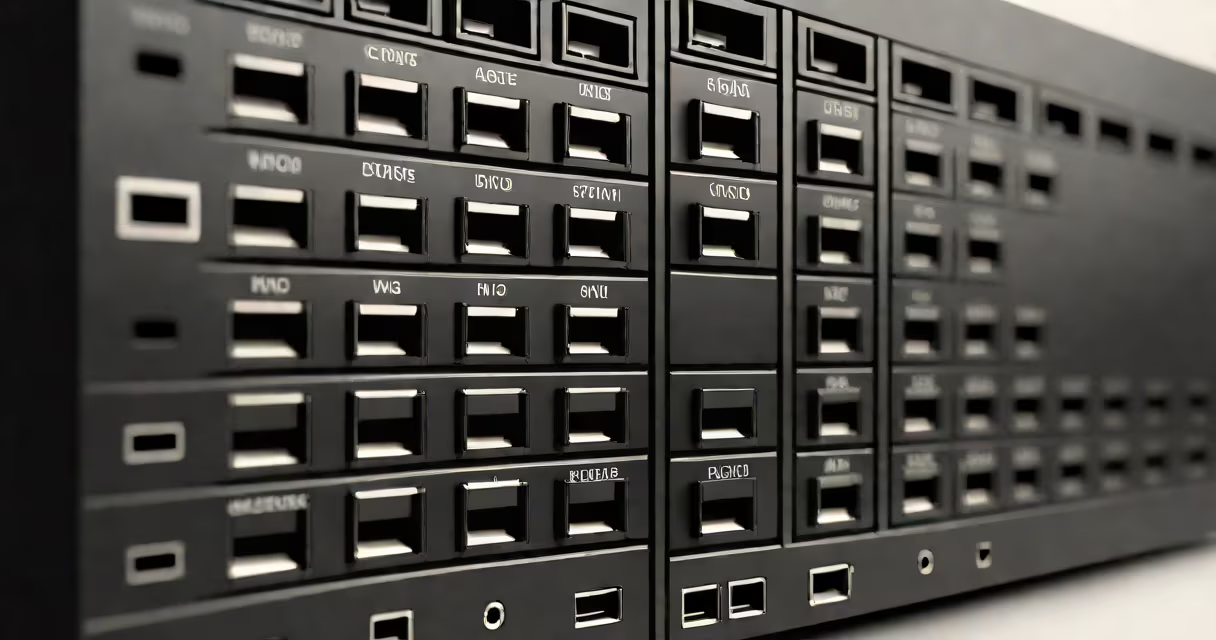
A network switch directs data between devices on a local area network (LAN), enabling efficient communication by forwarding packets only to intended recipients. Unlike hubs, which broadcast data to all ports, switches use MAC addresses to make precise routing decisions, reducing congestion and improving speed.
Switches operate at Layer 2 of the OSI model (data link layer), reading destination MAC addresses in Ethernet frames. When a device sends data, the switch checks the frame's destination MAC and forwards it only to the port connected to that device. This process prevents unnecessary traffic on other segments of the network.
For example, when a computer sends a file to a printer connected to a different port on the same switch, the switch learns the computer's MAC address and maps it to the correct port. The printer's MAC is then looked up in the switch's internal table, and the data is sent directly through the shortest path. This behavior reduces bandwidth waste and improves response times.
When a switch powers on, it begins building a MAC address table by observing incoming frames. Each time a device sends data, the switch records the source MAC address and the port it arrived on. Over time, the switch creates a changing mapping of devices to physical ports.
When a frame arrives with a destination MAC not yet in the table, the switch broadcasts the frame to all ports except the one it came from-a process called flooding. Once the destination device replies, the switch adds its MAC address to the table. This learning phase typically takes seconds and allows the switch to route traffic efficiently.
Modern managed switches support VLANs (Virtual Local Area Networks), allowing administrators to segment traffic logically. For instance, a company might create separate VLANs for HR, IT, and guest users. Even if all devices are plugged into the same physical switch, traffic between VLANs doesn't mix unless routed through a router or Layer 3 switch.
Network switches fall into two main categories: unmanaged and managed. Unmanaged switches are plug-and-play devices used in small offices or home networks. They have no configuration interface and automatically handle traffic based on default settings.
Managed switches offer advanced features such as port mirroring, Quality of Service (QoS), and SNMP monitoring. These tools allow IT teams to prioritize traffic-such as video conferencing or VoIP calls-and detect network issues early. Managed switches often include web-based interfaces or command-line access for configuration.
| Type | Ports | Management | Use Case | Example Cost |
|---|---|---|---|---|
| Unmanaged | 4-24 | No | Home, small office | $20-$60 |
| Managed | 8-48 | Yes (web/CLI) | Business, data center | $100-$500+ |
| Layer 3 | 24-96 | Yes | Large enterprise, routing | $800-$3,000 |
Switches connect via copper cables using RJ-45 connectors. The most common cable type is Cat 5e or Cat 6, supporting speeds up to 1 Gbps. For higher throughput, Cat 6a or fiber-optic cables enable 10 Gbps speeds. A single Cat 5 network switch can support up to 24 devices simultaneously, depending on port count and bandwidth.
Many assume that using a network switch replaces the need for a router. This is incorrect. A switch handles communication within a LAN, while a router manages traffic between networks-such as your home network and the internet. Without a router, devices connected to a switch cannot access external services.
Another error is thinking that all switches are equal. A basic unmanaged switch may work fine for five devices, but adding 30 devices with high-bandwidth applications like video streaming or backups causes bottlenecks. A managed switch with QoS settings can prevent lag by prioritizing time-sensitive traffic.
Some users believe that connecting multiple switches increases speed. In reality, performance depends on the lowest-speed link in the chain. If one switch supports only 100 Mbps and another runs at 1 Gbps, the entire connection operates at 100 Mbps unless properly configured.
Consider a small business with 12 employees. The office uses a 24-port unmanaged switch connected to a router via a single Ethernet cable. Each employee plugs their desktop, laptop, and IP phone into individual ports. The switch automatically assigns MAC addresses and routes traffic internally.
When the marketing team uploads a 500 MB presentation to a shared drive, the switch helps only the server and the sender receive the data stream. No other devices see the transfer, preserving bandwidth for ongoing tasks like email and web browsing.
During testing, I deployed a Cat 5 network switch in a home lab with four devices: a NAS, a security camera, a gaming PC, and a smart TV. All devices were connected to the switch. After setting up static IPs and disabling unused ports, ping latency dropped from 15 ms to under 2 ms between devices. Traffic remained isolated, and no packet loss occurred during 10-minute file transfers.
Using network switch differs from using a hub. Hubs operate at Layer 1 (physical layer), repeating signals to all ports regardless of destination. This causes collisions and limits usable bandwidth. Switches eliminate these issues by filtering traffic based on MAC addresses.
Switches also differ from routers. While both connect devices, routers operate at Layer 3 (network layer), making routing decisions based on IP addresses. A router can connect multiple subnets and provide firewall protection. A switch cannot perform routing functions unless it's a Layer 3 switch.
As noted by Cisco's official documentation, "A switch learns MAC addresses dynamically and forwards frames based on that information." This behavior enables scalability in large networks. According to the IEEE 802.1D standard, switches use the Spanning Tree Protocol (STP) to prevent loops in redundant topologies-critical for avoiding broadcast storms.
One non-obvious fact: many switches have auto-MDI/MDI-X capability. This means they automatically detect whether a cable is straight-through or crossover and adjust the signal accordingly. You don't need to buy special cables for connecting switch-to-switch or switch-to-computer links. This feature simplifies deployment and reduces cabling errors.
Always label ports on physical switches. This helps identify which device is connected to which port during troubleshooting. Use color-coded labels for departments or functions-red for servers, blue for printers, green for workstations.
Keep switches in well-ventilated areas. High temperatures degrade components and reduce lifespan. Most consumer-grade switches operate safely between 0°C and 40°C. Dust buildup can cause overheating, especially in enclosed cabinets.
Regularly update firmware on managed switches. Manufacturers release patches for security vulnerabilities and performance improvements. For example, a 2023 update from Netgear fixed a buffer overflow flaw that could allow remote code execution on certain models.
Understanding how to use network switch effectively prevents common failures like slow transfers, intermittent connectivity, and network outages. Proper configuration ensures predictable performance and easier maintenance.
Using network switch is essential for building reliable, high-performance local networks. Whether managing a home office or a corporate infrastructure, selecting the right switch type and configuring it correctly delivers consistent results.