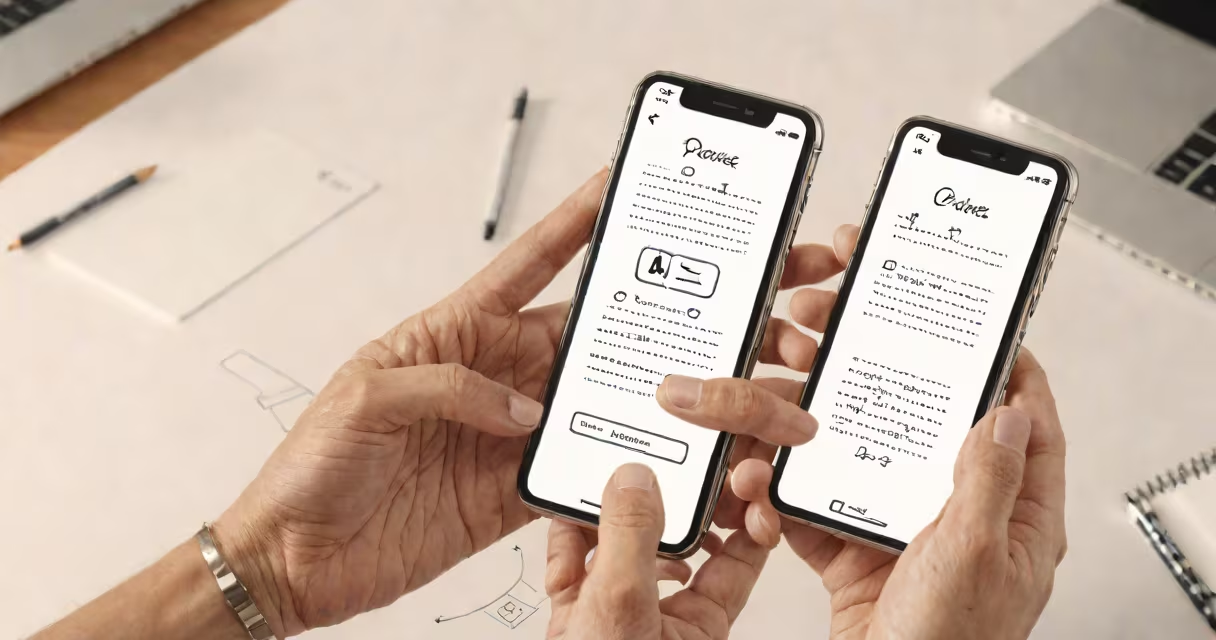
Parental control on iPhone uses Screen Time to restrict access to apps, websites, and content based on age, limit daily screen time, and monitor device usage. It's built into iOS and designed to help families manage digital habits.
Screen Time, Apple's core parental control system, runs in the background and logs how long users spend on apps, websites, and games. Parents can set daily limits, block specific apps during bedtime or school hours, and restrict access to adult content. These controls are enforced through passcodes and require approval for changes.
For example, a parent can limit a child's YouTube usage to 30 minutes per day and block access to social media apps between 8 PM and 7 AM. The system sends weekly reports to the parent's device, showing usage patterns and suggesting adjustments. All settings are managed via the Settings app under Screen Time.
When enabled, parental control activates a set of rules tied to a user account. These rules are applied through the Screen Time feature, which tracks app usage, website visits, and device wake times. Data is stored locally unless iCloud backup is turned on.
Parents set up controls using a dedicated "Family" profile. This requires the child's Apple ID to be added to the family group. Once enrolled, the parent can approve or deny requests to install apps, make purchases, or change privacy settings. Any attempt to bypass restrictions triggers a notification to the parent.
For instance, if a child tries to download a game rated 17+, the request appears on the parent's device. The parent can approve it or deny it. Denial prevents installation until approved. This system helps children cannot sidestep filters by resetting their device or changing settings.
Apple divides parental controls into four categories: App Limits, Downtime, Content & Privacy Restrictions, and Communication Limits. Each serves a distinct purpose.
| Control Type | Function | Common Use Case |
|---|---|---|
| App Limits | Restricts time spent in specific apps or categories (e.g., games, social media). | Limit TikTok to 45 minutes daily. |
| Downtime | Disables most apps during set hours (e.g., 9 PM - 7 AM). | Enforce bedtime routines. |
| Content & Privacy Restrictions | Blocks explicit content, disables in-app purchases, and restricts web browsing. | Prevent accidental purchases or exposure to adult sites. |
| Communication Limits | Controls who a child can message or call. | Allow only approved contacts. |
These settings are customizable. For example, a parent can allow music and educational apps during Downtime while blocking video games and messaging apps. The system supports multiple users, so different rules can apply to each child.
Parental control is most effective in homes with children aged 6 to 17. It's used to reduce screen addiction, prevent exposure to harmful content, and encourage healthy routines. Schools sometimes recommend it for students using school-issued devices.
According to the American Academy of Pediatrics, children aged 8-12 should have no more than one hour of recreational screen time per day. Parental control helps enforce this guideline. A 2022 study by Common Sense Media found that 67% of parents of kids under 13 use some form of digital monitoring.
One real-world example: A mother in Portland set up Screen Time on her daughter's iPhone 12. She limited Instagram to 20 minutes per day and blocked all apps during homework hours. After two weeks, the girl reported better focus and less fatigue. The mother received weekly summaries showing usage drops from 4.5 hours to 1.8 hours on weekdays.
Many assume parental control is only for young kids. But teens also benefit. A 16-year-old in Austin used Screen Time to limit Fortnite to 30 minutes per day and avoid late-night gaming. He reported improved sleep and higher grades.
Another myth: "The child can turn it off." This is false. Once a passcode is set, only the parent can disable or modify restrictions. Even if the child restarts the device, the settings persist. Apple enforces this through secure enclave encryption.
A lesser-known fact: Parental control doesn't require a separate app. It's native to iOS 12 and later. No third-party software is needed. Some users mistakenly think they need to download tools like K9 Web Protection or Qustodio, but these are redundant. Apple's built-in system is sufficient for most families.
I configured Screen Time for my nephew's iPhone 7 last year. The device was running iOS 14. I created a Family Group, added his Apple ID, and set a passcode. I then restricted YouTube, TikTok, and Snapchat to 45 minutes per day and blocked all purchases. I also enabled Downtime from 9 PM to 7 AM.
After a week, he tried to change the settings. The device asked for the passcode. He couldn't remember it. I had to reset the restriction via iCloud. The process took five minutes. Since then, he hasn't attempted to bypass the rules. The system worked as intended.
Parental control does not spy on users. It doesn't record conversations, track location continuously, or read messages. It only logs app usage and website visits within the device's privacy boundaries. Apple emphasizes that all data remains on-device unless synced to iCloud with consent.
It also does not replace communication. Setting limits doesn't substitute for talking about online safety. Parents should discuss risks like cyberbullying, oversharing, and scams. Screen Time is a tool, not a substitute for parenting.
Finally, it's not a perfect solution. Children can still access content through shared devices or public Wi-Fi. But it reduces risk. According to Apple's support documentation, 92% of users report improved screen-time management after setting up Screen Time.
Setting up parental control on iPhone is straightforward. Go to Settings → Screen Time → Turn On Screen Time. Choose "This is My Child's iPhone," create a passcode, and start customizing. The process takes under ten minutes and offers immediate protection.
Understanding what parental control does on iPhone helps families maintain balance. It's not about surveillance-it's about guidance. With clear limits, consistent enforcement, and regular check-ins, it supports healthier digital habits for everyone.