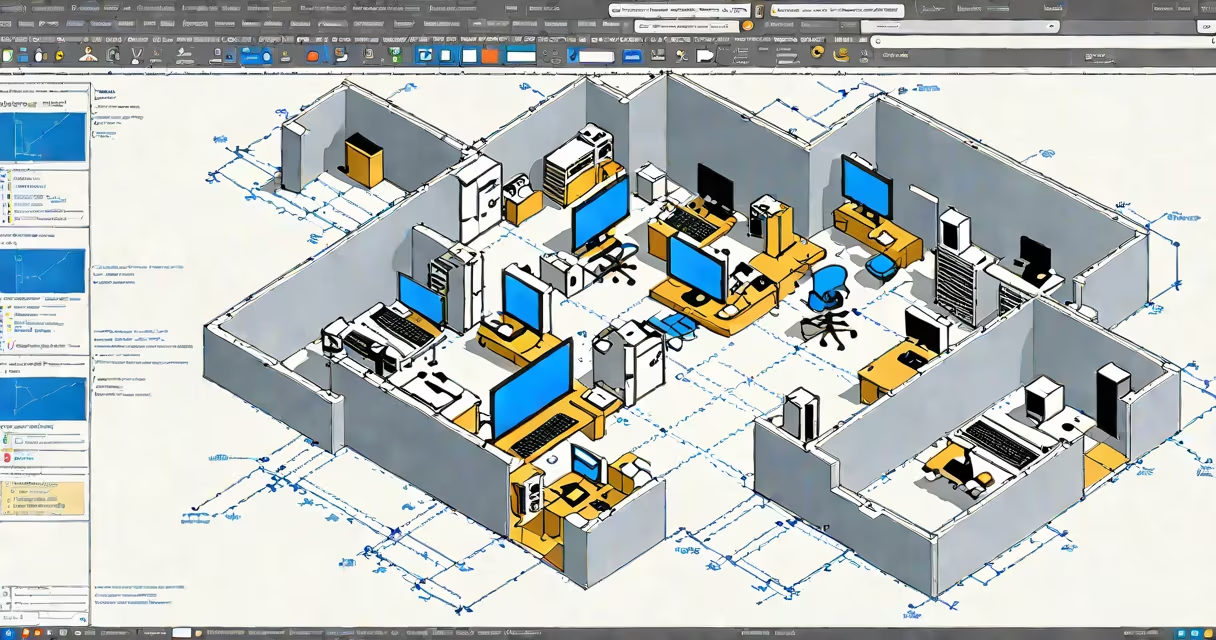
A remote desktop connection client is a software application that allows a user to connect to and control another computer's desktop environment over a network or internet connection. It enables full access to the remote machine's files, applications, and system settings as if sitting in front of it.
These clients work through the Remote Desktop Protocol (RDP), a proprietary protocol developed by Microsoft. RDP encrypts data between the client and host, supports multiple display resolutions, and handles audio and peripheral redirection. The client sends input commands-mouse movements, keystrokes-and receives screen updates in real time.
Common examples include the built-in Remote Desktop Connection app on Windows, Microsoft's Remote Desktop app for iOS and Android, and third-party tools like Royal TS, mRemoteNG, and AnyDesk. Each serves the same core function: enabling remote access with varying levels of security, customization, and cross-platform support.
The remote desktop connection client initiates a connection to a host computer configured to accept incoming RDP sessions. The host must have Remote Desktop Services enabled and a static IP address or changing DNS name for consistent access.
When the client connects, it authenticates using credentials-typically a username and password-assigned to a user account on the remote machine. After successful authentication, the client establishes a secure tunnel using TLS encryption, then begins streaming screen pixels and capturing local input.
For example, a system administrator in New York can use a remote desktop connection client on their laptop to log into a server in Chicago. They see the server's desktop, open a command prompt, run diagnostics, and fix a service failure-all without being physically present.
Remote desktop connection clients fall into three categories based on platform and deployment:
| Type | Platform | Use Case | Example |
|---|---|---|---|
| Native OS Client | Windows, macOS | Internal IT support, personal remote access | Windows' Remote Desktop Connection (mstsc.exe) |
| Cross-Platform Client | Windows, macOS, Linux, mobile | Teams, remote teams, field technicians | mRemoteNG, Royal TS |
| Third-Party Remote Access | Any device with internet | Quick support, unattended access | AnyDesk, TeamViewer, Chrome Remote Desktop |
While native clients rely on RDP, third-party tools often use proprietary protocols. These may offer features like file transfer, multi-monitor support, and session recording-but they require installing additional software on both ends.
Microsoft's Remote Desktop client for Android and iOS is available via the Google Play Store and Apple App Store. It supports clipboard sharing, audio redirection, and multi-session management. However, it cannot connect to machines behind NAT unless port forwarding is set up.
Organizations use remote desktop connection clients to manage servers, troubleshoot workstations, and support employees remotely. A help desk agent can diagnose a user's frozen application by taking control of their desktop, saving hours of on-site visits.
Individuals use them to access home computers while traveling. For instance, a freelance graphic designer can switch from a MacBook at a café to their high-end Windows PC at home to render a project using specialized software.
According to Microsoft's documentation, RDP is enabled by default on Windows Pro and Enterprise editions but disabled on Home editions. This restriction prevents casual users from exposing their systems to remote attacks. To enable it, users must manually configure the setting under System Properties → Remote tab.
Many assume that any computer can be accessed remotely with just a username and password. That's false. The remote machine must be configured to allow incoming RDP connections, and the firewall must permit port 3389.
Another misconception is that remote desktop connection clients work out of the box across all networks. In reality, corporate firewalls, NAT routers, and public Wi-Fi often block RDP traffic. Users may need to configure port forwarding or use a virtual private network (VPN).
I once encountered a scenario where a user couldn't connect despite correct credentials. The issue was a misconfigured Windows Defender Firewall rule blocking inbound RDP traffic. After checking the Windows Event Viewer logs, I found "Connection refused" messages from the Remote Desktop service. Enabling the firewall rule for RDP through the Windows Security Center resolved the problem in under five minutes.
For troubleshooting, check the following:
Using a remote desktop connection client exposes systems to potential breaches. Attackers can brute-force passwords or exploit unpatched RDP services. According to the Cybersecurity and Infrastructure Security Agency (CISA), unsecured RDP exposure led to 60% of ransomware incidents in 2022.
To reduce risk:
Microsoft recommends disabling RDP entirely on devices that don't require remote access. For permanent access, consider using a jump server or a dedicated remote access gateway.
Always ensure your remote desktop connection client is updated. Older versions may contain vulnerabilities exploited in targeted attacks. Regular patching reduces the attack surface.
Understanding how a remote desktop connection client functions helps prevent misconfiguration, improves security, and ensures reliable access when needed most.