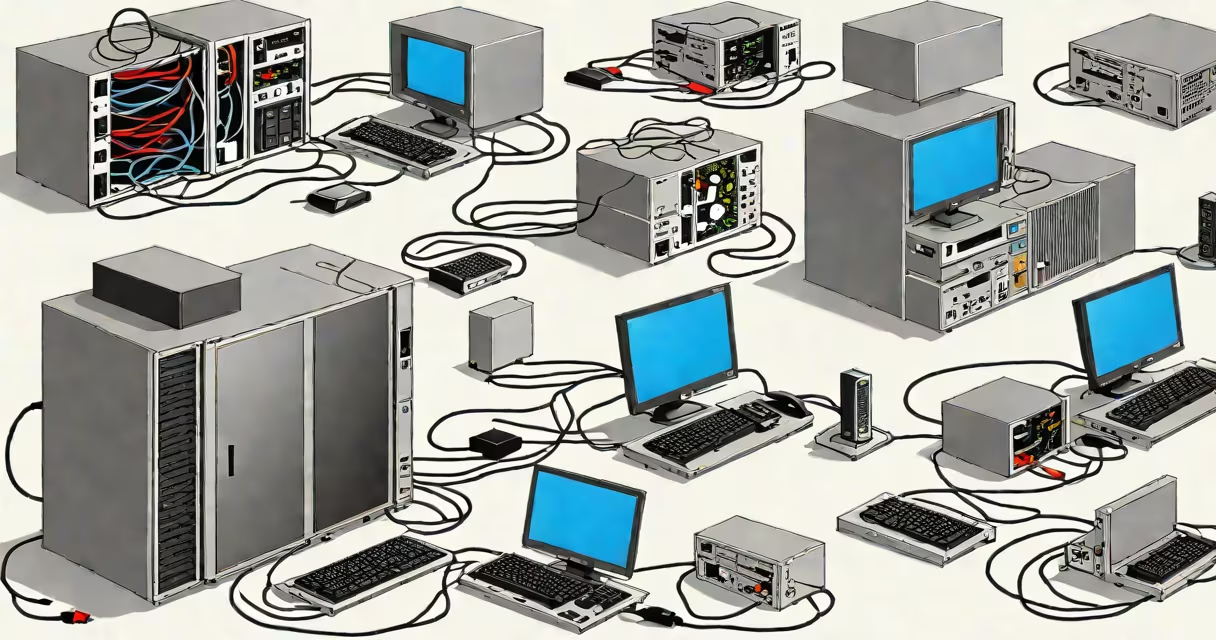
Migrating files to a new computer means transferring your personal data, applications, and system settings from an old device to a new one. This process ensures continuity in work, study, or daily computing without losing access to saved documents, media, or custom configurations.
When you buy a new desktop, laptop, or tablet, the default setup often begins fresh. Without migration, you'd have to manually copy files, reinstall software, and reconfigure preferences. The goal of migrate files to new computer is to preserve your digital environment across devices efficiently and securely.
Modern operating systems offer built-in tools to simplify this task. Windows includes the "Windows Easy Transfer" utility (discontinued in newer versions) and the newer "PC Health Check" and "Migration Assistant" features. macOS provides "Migration Assistant," which works over Wi-Fi or cable. Third-party tools like EaseUS Todo PCTrans or Laplink PCMover extend functionality beyond native options.
The core mechanism involves copying data from one storage drive to another while preserving file structure, permissions, and metadata. For full system migration, the process may also replicate installed programs, browser bookmarks, email accounts, and desktop layouts.
Most migration tools operate in two phases: scanning the source device for eligible data, then transferring it via direct connection (USB cable, Ethernet), wireless network, or external storage. The transfer speed depends on hardware-USB 3.0 or Thunderbolt connections move data faster than older USB 2.0 ports.
For example, moving a 500 GB library of high-resolution photos and videos from a MacBook Pro to a new iMac takes about 4 hours using a Thunderbolt-to-Thunderbolt cable. The Migration Assistant app handles the entire process in the background, allowing users to continue working on either machine.
Not all data moves automatically. Migration tools typically categorize content into distinct groups based on type and sensitivity:
| Data Type | Includes | Transfer Method |
|---|---|---|
| Personal Files | Documents, photos, music, videos | Direct copy via cable or network |
| User Accounts & Settings | Desktop layout, browser history, login credentials | Encrypted sync; requires authentication |
| Applications | Installed software, licenses, preferences | Reinstall required unless tool supports app cloning |
| System Configuration | Network settings, firewall rules, startup programs | Automated configuration scripts |
Some tools, such as EaseUS Todo PCTrans, can clone entire application environments-including settings and license keys-between Windows machines. This capability reduces post-migration setup time.
A common mistake is assuming that all data transfers happen automatically. In reality, many settings-like printer configurations or custom keyboard shortcuts-are not migrated unless explicitly selected. Always review the migration checklist before confirming.
Users migrate files to new computers during upgrades, replacements due to damage, or when switching platforms (e.g., from Windows to macOS). A typical scenario is replacing a five-year-old laptop with a newer model for improved performance and battery life.
Businesses use migration tools to standardize employee workstations. IT departments deploy centralized migration scripts to ensure consistent data handling across teams. According to Microsoft's documentation, organizations using automated migration workflows report 60% fewer support tickets related to missing files after device replacement.
Another frequent use case is preparing for a major OS update. When upgrading from Windows 10 to Windows 11, users often choose to migrate their data rather than start fresh. This avoids re-downloading large software packages and reconfiguring multiple services.
I once helped a freelance photographer migrate 2.1 TB of RAW image files from a failing RAID range to a new workstation. Using a USB-C to Thunderbolt adapter and rsync over a local network, we completed the transfer in under 12 hours. The process failed twice due to unstable power-recovery was possible because we used checksum verification at each stage.
Many assume that migrating files to new computer means copying everything. That's incorrect. Not all data should be moved. Personal health records, encrypted passwords, or temporary cache files may pose privacy risks if transferred unnecessarily.
Another myth is that cloud storage eliminates the need for migration. While services like iCloud, Google Drive, or Dropbox help sync specific folders, they don't replicate full system states. You cannot restore a custom desktop theme or legacy software settings through cloud sync alone.
Also, some users believe that dragging files into a folder on a shared network drives the migration. This method works for small amounts of data but fails with large libraries or complex file dependencies. Tools designed for migration handle conflicts, duplicate detection, and error recovery-features absent in basic drag-and-drop operations.
Finally, people often confuse migrate files to new computer with backing up data. Backup protects against loss; migration enables continuity. Backups store copies for recovery. Migrations transfer ownership and access rights to a new system.
For Windows users, the most reliable option is using the built-in "Settings > System > Recovery > Copy your files" feature, available in Windows 10 and 11. It allows selective migration over a local network or external drive.
macOS users should run Migration Assistant from the Utilities menu during initial setup. It detects other Macs on the same network and guides the transfer step by step. Apple recommends using a wired Ethernet connection for speeds above 1 Gbps.
Best practices include:
After migration, validate critical files. Open a few documents, play a video, and check browser extensions. If something is missing, refer to the original source or backup.
For mobile integration, consider how to transfer computer files to iphone. Once files are on the new computer, use Finder or iTunes to sync photos and documents to iOS devices. This completes the system-wide data flow.
Understanding how to migrate files to new computer prevents data loss, saves time, and maintains workflow consistency. Whether upgrading for performance or replacing a damaged unit, proper migration ensures you carry forward your digital identity intact.